- GA4
- HubSpot
- GTM
- Conversion Tracking
Fix HubSpot Form Tracking in GA4
By Dolphin Analytics team · Published 26 Aug 2026 · Updated 1 Sept 2026
TL;DR
HubSpot form submissions usually fail to reach GA4 because HubSpot renders the form inside an iframe and submits over AJAX, so GTM's built-in form trigger never sees the submit. The fix is a GTM listener for HubSpot's window message event (hsFormCallback), which pushes a dataLayer event that fires a GA4 key event. You then import that key event into Google Ads as a conversion. We wire up this form tracking for clients most weeks.
Olamide Sule, founder of Dolphin Analytics: a digital analytics expert based in London delivering solutions for agency and in-house clients.
Your HubSpot form works. Leads land in the CRM, the thank-you message shows, sales follow up. Then you open GA4 or Google Ads and the conversion count sits at zero. We fix this most weeks for agencies and in-house teams, so this is the walkthrough we’d give a client: why HubSpot forms slip past GA4, the exact fix in Google Tag Manager (GTM), and how to get the conversion all the way into Google Ads so your bidding stops flying blind.
Why don’t HubSpot form submissions show up in GA4?
HubSpot form submissions usually miss GA4 because HubSpot renders the form inside an iframe and submits it over AJAX. There’s no page reload and no thank-you URL, and the submit happens in a separate document, so GTM’s built-in Form Submission trigger never sees it. The form succeeds, HubSpot records the lead, and GA4 records nothing because nothing on your own page fired an event.
That single detail, the iframe, breaks the most common tracking recipe.
People set up GTM’s native Form Submission trigger, test it on a normal page
form, and it works. On the HubSpot form it stays silent, because the submit
event fires inside HubSpot’s iframe and can’t bubble up to your container.
The AJAX submission compounds it: with no navigation to a /thank-you page,
there’s no pageview to count as the conversion either.
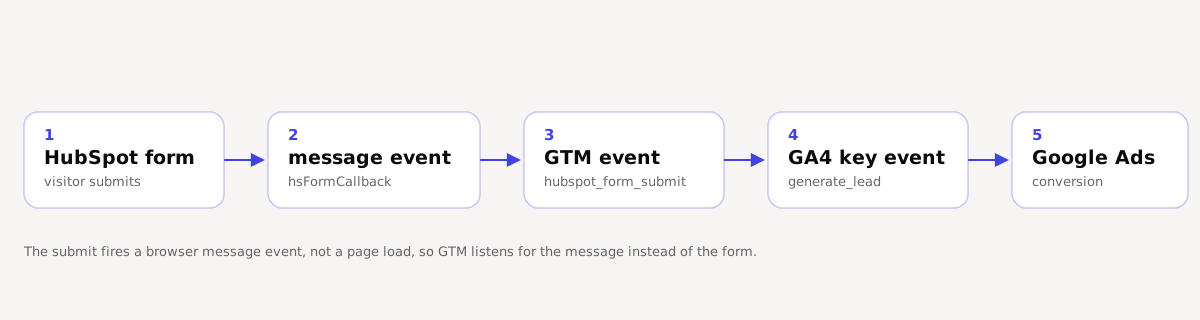
The good news is that HubSpot hands you a clean signal to listen for. On every embedded form it broadcasts a browser message event on the parent window when the form is submitted. You track the message, not the form.
The two HubSpot form types, and why each breaks tracking
Before the fix, it helps to know which HubSpot form you have, because the symptom differs.
- Embedded HubSpot forms (the standard embed code,
hbspt.forms.createor the newer script embed) render inside an iframe. This is the common case and the reason GTM’s form trigger fails. The submit is real, but it’s sealed inside another document. - HubSpot-hosted landing pages put the form on a
hs-sites.comor your own subdomain served by HubSpot. Here the problem is usually cross-domain: the visitor moves from your main site to a HubSpot domain, and without cross-domain measurement configured, GA4 starts a new session and loses the original source. - Raw HTML or API-driven forms (built yourself, posting to HubSpot’s Forms API) don’t emit HubSpot’s message event at all, so the listener below won’t fire. Track these like any custom form: a submit-handler or a success-state event you push to the dataLayer yourself.
Most GA4 gaps we see are the first type. The rest of this guide fixes the embedded-form case, then covers the cross-domain and multi-form wrinkles.
How do you track HubSpot form submissions in GA4 with GTM?
Track HubSpot form submissions in GA4 by listening for HubSpot’s window message event in GTM, pushing a custom dataLayer event, then firing a GA4 event tag on it and marking that event as a key event. It takes five steps once GTM and the GA4 configuration tag are already on the page.
Step 1: listen for HubSpot’s form callback
Create a Custom HTML tag in GTM that attaches a listener for HubSpot’s
message event. HubSpot broadcasts an hsFormCallback message with an
eventName of onFormSubmitted when a submission succeeds
(documented in HubSpot’s advanced form options).
Push a clean event to the dataLayer when it fires:
<script>
  window.addEventListener("message", function (event) {
    if (
      event.data.type === "hsFormCallback" &&
      event.data.eventName === "onFormSubmitted"
    ) {
      window.dataLayer = window.dataLayer || [];
      window.dataLayer.push({
        event: "hubspot_form_submit",
        hs_form_id: event.data.id
      });
    }
  });
</script>
Fire this tag once on Initialisation or All Pages so the listener is
attached before any submit. Use onFormSubmitted, not onFormSubmit:
onFormSubmit fires when the user clicks submit, before validation, so
counting it inflates your numbers with failed and abandoned attempts.
Step 2: create a custom event trigger
Add a Custom Event trigger in GTM with the event name
hubspot_form_submit, matching the string you pushed in step 1. This is what
tells your GA4 tag when to fire.
Step 3: fire a GA4 event tag
Create a GA4 Event tag using your existing GA4 configuration. Name the
event generate_lead (GA4’s recommended event for a lead) or form_submit
if you prefer. Add an event parameter, for example hs_form_id, mapped to
the {{DLV - hs_form_id}} data-layer variable so you can tell forms apart
later. Set the trigger to the custom event from step 2.
Preview in GTM, submit the form, and confirm the event lands in GA4 DebugView. If it shows there, the hard part is done.
Step 4: mark it as a key event in GA4
An event in GA4 is not a conversion until you say so. Google renamed GA4
conversions to “key events” in 2024
(Google’s own documentation covers the change).
In GA4, go to Admin, Key events, New key event and enter generate_lead
(the name must match your event exactly). From that point GA4 counts it as a
key event.
Step 5: import the key event into Google Ads
For Google Ads to bid on the lead, import the GA4 key event as a conversion.
Confirm the GA4 property is linked to the Google Ads account, then in Google
Ads go to Goals, Conversions, New conversion action, Import, Google
Analytics 4. Select generate_lead and import it. Give it a day or two,
then check the conversion column is filling in on the campaigns driving those
forms.
How do you track a specific HubSpot form, not all of them?
When several HubSpot forms sit across the site, split them by the form GUID
that HubSpot sends in event.data.id. The listener in step 1 already pushes
it as hs_form_id. To count one form on its own, add a condition to your
custom event trigger (for example, hs_form_id equals the demo-request form
GUID) or create separate GA4 events per form. That keeps a newsletter signup
and a demo request as distinct key events, so Google Ads can bid toward the
one that actually generates pipeline rather than a merged total.
You’ll find a form’s GUID in HubSpot under Marketing, Forms, in the form’s
share or embed code, or logged straight from event.data.id while you test
in GTM preview.
Why does GA4 still show nothing after all this?
If the event still doesn’t appear, work through the usual suspects in order. Most GA4 gaps on HubSpot forms trace back to one of these five faults.
- Consent blocking the tag. If you run consent mode and the visitor hasn’t accepted, the GA4 tag is held back and the submit goes uncounted. Test with consent granted first to isolate the cause, then decide how to handle denied states. Broken consent setups silently drop a large share of UK and EU traffic, which we cover in how cookie consent breaks GA4 data.
- Tag firing order. If the GA4 configuration tag hasn’t loaded when the event fires, the event has nowhere to go. Make sure configuration loads before the event tag.
- Wrong measurement ID. A test property or an old measurement ID means the event fires into the wrong place. Check DebugView on the exact property you’re reporting from.
- Listener attached twice. If the Custom HTML tag fires on more than one trigger, the listener stacks and each submit pushes two events, doubling the count. Fire it once.
- Raw HTML form. If the form was hand-built against HubSpot’s API rather
than embedded, it never emits
hsFormCallback, so the listener is silent. Track it as a custom form instead.
For HubSpot landing pages on a separate domain, the fix is different: set up cross-domain measurement in GA4 so the session and traffic source survive the jump. If you’re not sure whether the tag is even firing, you can check what’s tracking on any page before you start changing tags.
Do you need GTM to track HubSpot forms in GA4?
No, but it makes the setup far easier to manage. You can add HubSpot’s
onFormSubmitted callback in your own code and send the GA4 event with
gtag directly, and for a single form on a simple site that is a reasonable
choice.
GTM earns its place when you run several forms, need consent gating before the event fires, or want non-developers to edit the setup later without a deployment. Either way you are reacting to the same HubSpot message, so the logic is identical; GTM just moves it somewhere easier to hold.
Why broken form tracking costs more than a tidy dashboard
Zero conversions in GA4 isn’t a cosmetic problem. Google Ads Smart Bidding optimises toward the conversions it can see, so a missing form event means the algorithm is bidding on clicks, not leads, and steering budget by the wrong signal. Every day the form goes uncounted is a day of spend allocated blind.
The gap is usually bigger than teams expect. Here is what that gap looked like on one audit. For a private aviation company, 88.6% of contacts with deals had no web attribution at all: 443 of 500 were offline or CRM-entered. Attribution work then traced a $767,500 charter enquiry back to a single organic search visit. The deals were real, but the tracking never tied them back to the channel that produced them. Fixing the form event is the first thread; the wider job is making the numbers in GA4 match what the business actually did. That pattern shows up across the cluster, from Google Analytics not tracking conversions to Google Ads conversions not tracking, and a broken form is one of its most common single causes.
Get your HubSpot conversions counted
Once the listener, the key event and the Google Ads import are in place, HubSpot form submissions flow into GA4 and Google Ads like any other conversion, and your bidding has real leads to optimise toward. If you’d rather have someone confirm it end to end, or you suspect the problem runs deeper than one form, the free data audit checks whether your key events fire, match across GA4 and Google Ads, and reconcile with the leads in HubSpot. It pairs well with a broader GTM audit when several tags are involved.
Frequently asked
Why don't my HubSpot form submissions show up in GA4?
HubSpot embeds most forms inside an iframe and submits them over AJAX, with no page reload and no thank-you page load. GTM's built-in Form Submission trigger watches the page's own form elements, so it never sees a submit that happens inside HubSpot's iframe. The form works fine in HubSpot, but GA4 records nothing because nothing on your page fired. The fix is to listen for the window message event HubSpot broadcasts on submit, not the form itself.
Why doesn't GTM's Form Submission trigger work with HubSpot forms?
GTM's Form Submission trigger listens for a submit on a form element in your page's document. A HubSpot embedded form lives in a separate iframe document, so the submit event never reaches your GTM container. HubSpot also submits by AJAX, so there's no navigation to a thank-you URL to trigger on either. Listen for HubSpot's hsFormCallback message event instead, which fires on the parent window where GTM can read it.
How do I track a specific HubSpot form rather than all of them?
HubSpot's onFormSubmitted message includes the form's GUID at event.data.id. Push that value into the dataLayer alongside your event, expose it as a GTM data-layer variable, then add a condition to your trigger or a filter in your GA4 event so it only counts the form GUID you care about. That keeps a newsletter signup and a demo request as separate key events rather than one merged number.
GA4 shows the event but Google Ads shows no conversion. Why?
A GA4 event is not a conversion until you mark it as a key event in GA4 admin, and it won't reach Google Ads until you import that key event as a conversion action. Check three things: the event appears in GA4 DebugView, it's ticked as a key event, and it's imported under Google Ads goals. Also confirm the GA4 property is linked to the Google Ads account, or the key event never appears to import.
Do I need GTM to track HubSpot forms in GA4?
No, but GTM makes it far easier to manage. You can add HubSpot's onFormSubmitted callback in code and send a GA4 event with gtag directly. GTM is better when you run several forms, need consent gating, or want non-developers to edit the setup later. Either way you're reacting to the same HubSpot message event; GTM just gives you a tidier place to hold the listener, the trigger and the GA4 tag.