- Google Tag Manager
- GTM
- Tracking
- Audit
Google Tag Manager Audit Checklist: 6 Passes
By Dolphin Analytics team · Published 26 Aug 2026 · Updated 1 Sept 2026
TL;DR
A Google Tag Manager audit checks six things in order: the right container is live and publishing is controlled, tags fire once with no duplicates, triggers only fire where they should, dataLayer variables return real values, Consent Mode denies storage until opt-in, and the container is named and versioned so it stays maintainable. Most GTM problems trace back to one of those six, not to Tag Manager itself. We run these six passes for clients most weeks.
Olamide Sule, founder of Dolphin Analytics: a digital analytics expert based in London who sets up and audits Google Tag Manager for agency and in-house teams every week.
Google Tag Manager is where tracking gets set up, and where it quietly breaks. Inherit a container someone else built and you are usually looking at a mix of live tags, paused tags, half-finished workspaces and triggers nobody documented. This is the checklist we run before trusting any GTM container, ordered so the checks that catch the most common faults come first. Work top to bottom: each pass assumes the one above it is already clean, because a broken tag hides behind a duplicate container, and a consent problem hides behind a loose trigger.
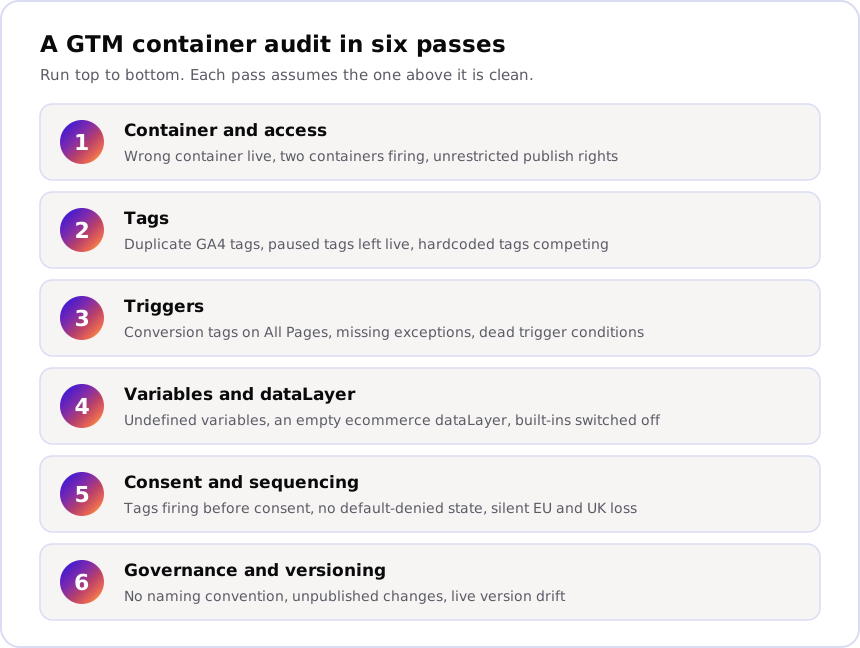
Pass 1: is the right container live, and who can publish to it?
Start with the container itself, because every tag downstream depends on it. Confirm the GTM container ID on the live site matches the one you are auditing, that only one container loads, and that publish rights sit with a named few. A second container left over from an old migration double-fires everything, and open publish access is how a clean container slowly drifts.
- Container ID matches: the
GTM-XXXXXXon the page is the container you think you are auditing, and only one GTM snippet loads. Tag Assistant or a quick look at the page source confirms both. - One source of truth: no hardcoded GA4, Meta or Google Ads tags sitting in the theme alongside GTM, firing the same events a second time outside the container.
- Publish access is limited: in Admin > User Management, publish rights belong to a named few, not everyone with a login. Uncontrolled publishing is the root of most container drift.
- No stray unpublished changes: the Workspaces view has no half-finished edits waiting. A forgotten workspace change ships the moment someone else hits publish.
If the wrong container is live, stop here. There is no point auditing tags that never reach the site.
Pass 2: does every tag fire once, and are any firing that should not?
With the container confirmed, check the tags themselves. The single most common
GTM fault is duplication: two GA4 configuration tags, or a GA4 tag plus a
hardcoded gtag snippet, sending every pageview twice. Open Preview mode (Tag
Assistant) and it shows exactly which tags fire on each page, so duplicates and
gaps both surface fast.
- No duplicate config: one GA4 configuration (Google tag), not two. Duplicates double pageviews, inflate users, and quietly break every downstream metric.
- Paused is not the same as removed: tags marked paused, or left with no trigger, are dead weight. Retired tags (an old Universal Analytics tag, an ex-vendor pixel) should be deleted, not left dormant for someone to re-enable by accident.
- Tags fire where expected: in Preview, walk the homepage, a product or service page, and a conversion, and confirm each tag fires on the right page and nowhere else.
- Conversion tags carry real values: the GA4 purchase or conversion tag
reads
valueandcurrencyfrom the dataLayer, not a blank field or a hardcoded number that is wrong for every order but one.
For a Shopify build, the checkout is where most of this goes wrong, and our Shopify Google Tag Manager setup guide walks through the custom-pixel and purchase-event part in detail.
Pass 3: do triggers fire on the right conditions, and only those?
Triggers decide when a tag fires, and loose triggers are where data goes wrong without any error showing. A conversion tag on an All Pages trigger counts every visit as a conversion; a purchase trigger with no page or event condition fires again on a refresh. Check every trigger against the action it is meant to represent.
- No conversion on All Pages: purchase, lead and sign-up tags fire on a specific event or page path, never on every pageview. This one fault alone can multiply your conversion count.
- Exceptions actually apply: triggers that should be blocked on internal traffic, or on consent-denied loads, carry that exception rather than just being labelled for it.
- Trigger conditions still hold: a trigger keyed to a CSS class, URL or dataLayer value that a redesign changed stops firing silently. Preview is the fastest way to catch the miss.
- Auto-event triggers are scoped: all-clicks and all-form-submit triggers are narrowed to the elements that matter, not firing on every button and field on the site.
Pass 4: are variables and the dataLayer actually populated?
Tags are only as good as the variables feeding them, so the fourth pass checks that dataLayer variables return real values rather than undefined. An ecommerce tag reading an empty dataLayer sends zeros; a purchase value pulled from a missing variable reports no revenue at all. Preview mode shows each variable’s resolved value on every event, which makes this pass quick once you know where to look.
- The dataLayer is present: on product, cart and purchase pages the dataLayer pushes the events and the ecommerce object your tags expect. No dataLayer means no reliable ecommerce tracking, whatever the tags say.
- Variables resolve: in Preview, the Variables tab shows real values,
not
undefined, for the ones your tags read on each event. - Built-in variables are enabled: the Click, Form, Page and History variables your triggers and tags depend on are switched on in the Variables list.
- No hardcoded stand-ins: a conversion value typed straight into a tag, instead of read from the dataLayer, is wrong for every order except the one it was copied from.
Pass 5: does Consent Mode fire tags in the right order for UK and EU visitors?
If the site serves UK or EU traffic, GTM should hold analytics and ad tags until consent is granted, with Consent Mode defaulting storage to denied first. Sequencing is the part people miss: a consent signal that loads after GA4 lets tags fire before the visitor has chosen, which breaks both the compliance position and the numbers, because early hits get counted under the wrong state.
- Default denied, first: a Consent Initialisation trigger sets
analytics_storageandad_storageto denied before any measurement tag runs. Google’s Consent Mode documentation sets out the signals GTM expects. - Tags respect consent: GA4 and ad tags carry their consent settings, so they wait for or model the granted state instead of ignoring it.
- Sequencing is correct: the consent platform (a CMP such as CookieConsent) loads and updates the signal before GTM releases the gated tags. Get the order wrong and the banner is cosmetic.
- The consent rate is believable: cross-check the consented share in GA4. A very low rate usually points at a broken banner or a sequencing fault, not genuine visitor reluctance.
If you are not sure what is currently firing on your site and in what order, Sonar, our free tracking checker, reports the tags, pixels and dataLayer event on a page with no account needed, which is the fastest way to see the truth before you judge it.
Pass 6: is the container named and versioned so it stays maintainable?
The last pass is not about broken data; it is about whether the next person can work in the container without causing an outage. A container with no naming convention, abandoned workspaces and a published version that no longer matches the live site becomes risky to touch, so a small change turns into a production incident.
- Naming convention holds: tags, triggers and variables follow a readable
pattern (type, tool, purpose), so
GA4 - Event - purchasebeatsTag 47. - Folders and workspaces are tidy: related items are grouped and there are no abandoned workspaces holding half-finished edits.
- Version notes exist: each published version carries a note saying what changed, so a bad release can be traced and rolled back quickly.
- Published matches live: the live container version is the one you think it is. An unpublished fix sitting in a workspace helps nobody.
Which tools actually help, and where they stop
A tool is the right way to start a GTM audit and the wrong way to finish one.
GTM’s own Preview mode, Google Tag Assistant, the page source and a container
export all flag configuration fast: a duplicate tag, an All Pages trigger on a
conversion, a variable resolving to undefined. What none of them can judge is
business meaning. A tool sees that a purchase tag fires; it cannot tell you the
value on it is half the real order total, or that the lead form that matters
most was never built into the container at all.
That is the split worth remembering. Automated checks cover the mechanical half of Passes 1 to 4. The judgement calls, whether the tags match what the business counts, whether the consent rate is real, whether the values reconcile with revenue, are the half that decides whether you can trust the data. If you just want to see what a site is running before you open the container, our guide on how to check what tracking a website uses covers the quick ways to read it from the outside.
Run the checklist, then get a second pair of eyes
Most GTM problems are not exotic. They are a duplicated tag, a conversion trigger firing on every page, a variable that resolves to nothing, or a consent signal loading in the wrong order. Working through these six passes in order finds the majority of them, and the ordering matters as much as the checks: fix the container before the tags, tags before triggers, and consent before you trust a single number. The GA4 side of the same job lives in our GA4 audit checklist, which picks up where the container hands data over. For how we approach tracking overall, see the tracking work on the homepage.
We run this container work for agency and in-house clients most weeks. Here is what that looked like on one consent engagement.
For a B2B marketing agency, a GDPR audit and fix helped the agency's car rental client avoid exposure to a fine of up to €20M or 4% of annual turnover. The agency protected a six-figure retainer and resold our fix at a 40% markup.
If your tracking numbers do not add up and you want a second pair of eyes on the container, talking to us is the fastest way to find out what is actually wrong, before a bad number drives a decision it should not.
Frequently asked
How long does a GTM audit take?
A single-container GTM audit usually takes half a day to a day: checking the container and access, tags, triggers, variables and the dataLayer, then Consent Mode and governance. Big containers with hundreds of tags, or multi-brand setups with a container per site, take longer because each one needs its own pass through the same checklist.
Can I audit a GTM container without developer access?
Mostly, yes. GTM's own Preview mode (Tag Assistant) and the page source show which container loads, which tags fire and what each variable resolves to, without touching code. Confirming why a duplicate tag exists, or why a dataLayer value is missing, sometimes needs someone who can read the site's template or dataLayer, so keep developer access or a screen share on hand for the tags and variables passes.
What free tools can I use to audit a GTM container?
GTM's built-in Preview mode and Google Tag Assistant cover the bulk of the checklist for free: which tags fire, on what trigger, with which variable values. They flag configuration, not business meaning: a tool sees that a purchase tag fires, but not whether the value on it matches real revenue. Sonar, our free tracking checker, reports the tags, pixels and dataLayer event firing on a page so you can see what is actually running before you judge it.
How often should you audit a GTM container?
Treat a GTM audit as event-triggered, not calendar-triggered. Re-run the checklist after any site migration, checkout or booking-flow rebuild, new vendor tag, or consent banner change, because each of those is a common way tracking silently breaks. Outside of those, a light quarterly pass over tags, triggers and consent catches drift before it compounds.
What is the difference between a GTM audit and a GA4 audit?
A GTM audit checks the container that collects and sends data: tags, triggers, variables, the dataLayer and consent. A GA4 audit checks what lands in Google Analytics after that: data streams, key events, retention and whether the numbers reconcile with a source of truth. The two overlap at the handover, so a full tracking review usually runs both, GTM first because a bad tag upstream makes clean GA4 settings meaningless.