- Google Tag Manager
- GTM
- GA4
- Tracking
Google Tag Manager Setup: A Step-by-Step Guide
By Dolphin Analytics team · Published 5 Sept 2026
TL;DR
Google Tag Manager setup means creating an account and container, installing the two GTM snippets on every page, then adding your GA4 tag inside the container instead of hard-coding it in the site. Test each tag in Preview and GA4 DebugView before you publish, and set consent to denied by default first if you serve UK or EU visitors.
Olamide Sule, founder of Dolphin Analytics: a digital analytics expert based in London, setting up and fixing tracking for agency and in-house clients.
We set Google Tag Manager up for clients most weeks, and the setups that go wrong later almost always went wrong in the first hour: the snippet in the wrong place, GA4 hard-coded and running twice, or tags firing before anyone gave consent. This is the order we set a container up in, with the exact clicks, the code to paste, and the UK consent step most guides skip.
What is Google Tag Manager, and do you need it?
Google Tag Manager (GTM) is a free tool that loads and controls your tracking tags (GA4, Google Ads, the Meta pixel, and others) from one container, so you add or change tracking without editing the site’s code each time. You add one container snippet to the site once; after that, every tag lives inside GTM and you publish changes from there. It is worth using the moment you run more than one tracking tool, or whenever getting a developer to edit the site is slow.
You do not strictly need it for a single GA4 tag. Once you add Google Ads conversions, a pixel, event tracking or consent logic, though, managing those in raw code gets fragile fast, and GTM is the standard way marketing teams keep control of it.
What you need before you start
Three things, and it is worth having all three ready before you touch GTM:
- A Google account with permission to create a Tag Manager account.
- Access to edit the site’s HTML, or a platform integration (WordPress, Shopify, Webflow and Squarespace all have a GTM field or plugin).
- A GA4 property already created, so you have its Measurement ID (the code starting with G-) to hand. If you have not set GA4 up yet, do that first.
How do you create a Google Tag Manager account and container?
Go to tagmanager.google.com, sign in, and click Create Account. GTM nests a container inside an account: the account is usually your company, the container is usually one website. Fill the form in this order:
- Account Name: your company or brand name.
- Country: set this to United Kingdom if that is where the business sits.
- Container name: your domain, for example
example.co.uk. - Target platform: choose Web for a standard website.
- Click Create, then accept the Terms of Service (set the language to your region at the top right first).
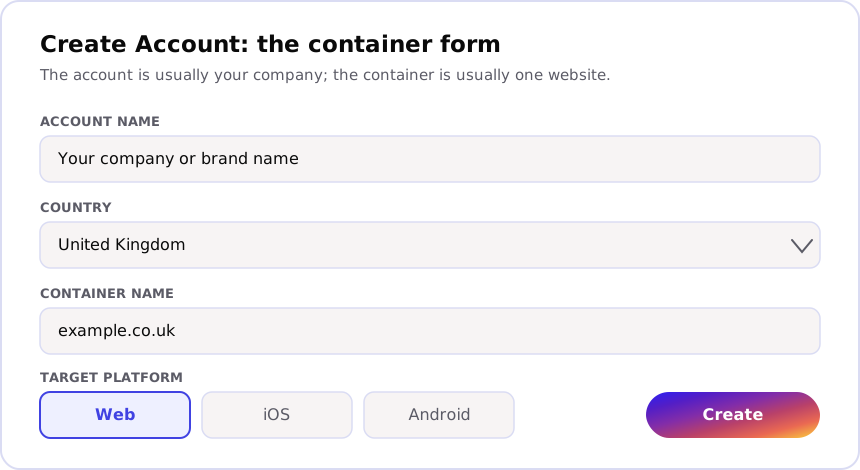
GTM then shows you the two install snippets in a pop-up. Leave that tab open, or find the same code again later under Admin > Install Google Tag Manager.
How do you install the GTM code on your site?
GTM gives you two snippets, and both have to go on every page you want to
track. Copy them exactly, replacing nothing except keeping your own GTM-
ID in place.
The first goes as high as possible inside the <head>:
<!-- Google Tag Manager -->
<script>(function(w,d,s,l,i){w[l]=w[l]||[];w[l].push({'gtm.start':
new Date().getTime(),event:'gtm.js'});var f=d.getElementsByTagName(s)[0],
j=d.createElement(s),dl=l!='dataLayer'?'&l='+l:'';j.async=true;j.src=
'https://www.googletagmanager.com/gtm.js?id='+i+dl;f.parentNode.insertBefore(j,f);
})(window,document,'script','dataLayer','GTM-XXXXXXX');</script>
<!-- End Google Tag Manager -->
The second goes immediately after the opening <body> tag, so it works when a
visitor has JavaScript disabled:
<!-- Google Tag Manager (noscript) -->
<noscript><iframe src="https://www.googletagmanager.com/ns.html?id=GTM-XXXXXXX"
height="0" width="0" style="display:none;visibility:hidden"></iframe></noscript>
<!-- End Google Tag Manager (noscript) -->
On a hosted platform you rarely paste raw code: WordPress plugins, Shopify’s
theme settings, and Webflow’s project settings all have a dedicated GTM field
where you drop the container ID instead. If you run GTM on Shopify, follow the
Shopify and GTM setup route rather than
editing theme.liquid by hand, because the checkout is a separate surface.
Where do you find your GTM container ID?
Your container ID is the GTM- code, seven characters after the hyphen. It
shows at the top of the GTM workspace, next to the container name, and again
under Admin > Install Google Tag Manager. That is the ID you drop into a
platform’s GTM field.
Keep it separate in your head from the GA4 Measurement ID, which starts with
G-. The GTM- ID names the container that holds your tags; the G- ID names
the GA4 property your Google tag sends data to. Pasting one where the other
belongs is a common first-timer slip.
How do you connect GA4 to Google Tag Manager?
Build one tag inside the container. In GTM, go to Tags > New > Tag Configuration, and choose Google Tag. The Google tag replaced the older GA4 Configuration tag and is now the standard way to load GA4 through GTM.
- In the Tag ID field, paste your GA4 Measurement ID (the
G-code). Find it in GA4 under Admin > Data streams > your web stream > Measurement ID. - Under Triggering, choose Initialization - All Pages, so the Google tag loads before your other tags.
- Name the tag something readable, for example
Google tag - GA4, and click Save.
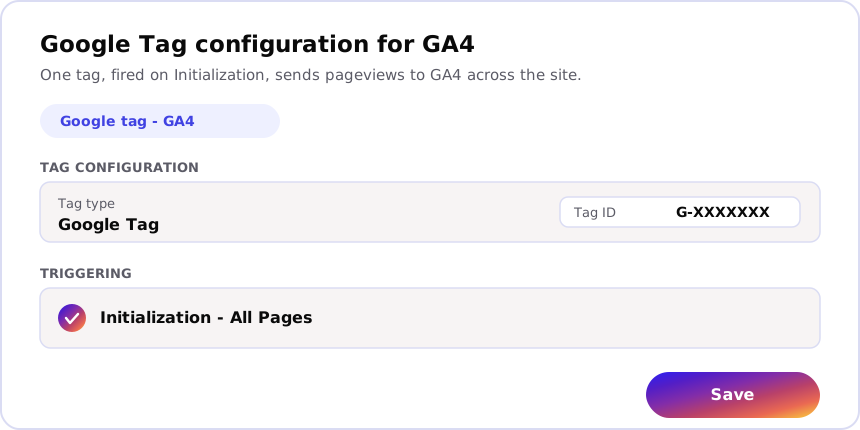
That single tag sends pageviews to GA4 across the site. For a custom event (a form submit, a button click), add a second tag with Tags > New > Google Analytics: GA4 Event, point it at the same Google tag, name the event, and fire it on the relevant trigger. Ecommerce needs a dataLayer feeding those events; the GA4 ecommerce dataLayer guide covers that part.
How do you test a tag before you publish?
Never publish blind. Click Preview at the top right of the workspace, enter your site’s URL in Tag Assistant, and click Connect. A new tab opens your site with a Connected badge, and Tag Assistant shows every event on the left.
- Load a page, then pick the Container Loaded / Initialization event in the Tag Assistant timeline.
- Open the Tags tab: your Google tag should sit under Tags Fired, not Tags Not Fired.
- Cross-check the other side. In GA4, open Admin > DebugView, and confirm the
page_viewfrom your test session appears there in real time.
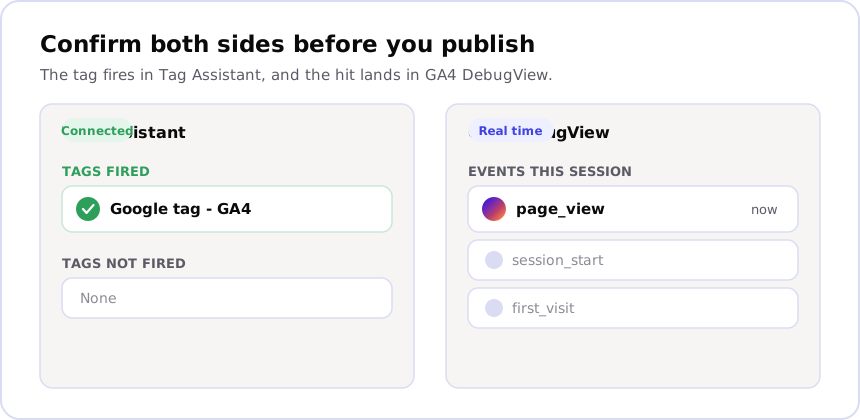
If the tag fires in Tag Assistant but nothing reaches DebugView, the fault is usually consent holding the tag or a wrong Measurement ID. When a tag will not fire at all, work through the GTM debugging steps in order rather than guessing.
How do you publish your container?
Nothing you build is live until you publish. Click Submit at the top right, then
Publish. Add a Version Name and a short description of what changed, for example
GA4 Google tag live, and click Publish again. GTM saves that as a numbered
version you can roll back to if a later change breaks something.
Version names matter more than they look. Six months on, “what did we change and why” is answerable from the version history only if each publish carries a real description, which is why we treat it as part of the setup, not an afterthought.
UK setup: consent before your tags fire
If you have UK or EU visitors, consent is not an optional extra bolted on later; it decides whether your analytics tags are legal to fire at all. UK PECR rules, enforced by the ICO, require opt-in consent before you set non-essential cookies, which covers analytics and advertising tags.
The standard way to handle this in GTM is Google Consent Mode with defaults set to denied. In practice that means a consent banner (a consent management platform) loads first and sets the default consent state to denied, GTM holds your analytics and ads tags while consent is denied, and those tags release the moment a visitor opts in. Get the order wrong and you either fire tags illegally before consent, or block them so hard that consented visitors never get counted either. We see both faults regularly, and the consent setup that silently loses data walks through how the wiring goes wrong.
The setup mistakes we see most
When we audit a container someone else built, the same handful of faults come up again and again:
- GA4 running twice, hard-coded in the site and added again in GTM, so pageviews and events double-count.
- Tags published without a Preview check, so a broken trigger goes live unnoticed.
- No consent logic, so analytics fires before opt-in and breaks UK PECR.
- No naming convention, so nobody can tell what a tag does a year later.
None of these are GTM’s fault; they are setup faults, and they are exactly what a structured pass catches. The GTM audit checklist runs the six checks we use to find them.
Want us to set GTM up, or check the one you have?
Getting Google Tag Manager set up cleanly is work we do for agency and in-house teams most weeks, from the first container through GA4, events, consent and ecommerce. It is precise rather than difficult: the value is in the tags firing once, on the right trigger, only after consent, with numbers you can trust. On one B2B agency engagement, the tracking fix we delivered was solid enough that the agency resold our fix at a 40% markup to its own client.
If you want it done properly, or handed off entirely, that is the tracking implementation work we do. If you already have a container and want to know what is actually firing on your site right now, run a free scan with Sonar, which reports the tags, pixels and consent setup it can see from the outside in one click. And if the numbers already look off and you are not sure why, talking to us is a short conversation with a person who will give you a considered read on the problem.
Frequently asked
How do I set up Google Tag Manager from scratch?
Create an account and a web container at tagmanager.google.com, copy the two snippets it gives you into every page (the script in the head, the noscript after the opening body tag), then build your first tag inside GTM. For most sites that first tag is the Google tag carrying your GA4 Measurement ID, fired on Initialization - All Pages. Preview it, confirm the hit lands in GA4 DebugView, then Submit and Publish. Set your consent defaults before any of that if you serve UK or EU visitors.
Where do I find my Google Tag Manager ID?
Your GTM container ID starts with GTM- followed by seven characters. It sits at the top of the workspace next to the container name, and in Admin under Install Google Tag Manager, which also shows the install snippets again. Do not confuse it with your GA4 Measurement ID, which starts with G-; the GTM ID identifies the container, the G- ID identifies the GA4 property the Google tag sends data to.
Do I still need to add GA4 code if I use Google Tag Manager?
No, and you should not. Add the GA4 Google tag inside your GTM container, not in the site's source code as well. Running both means GA4 loads twice and counts many pageviews and events twice, which is one of the most common faults we find on a first audit. Pick one path: the Google tag in GTM is the flexible one, because you can change tracking later without a developer touching the site.
Is Google Tag Manager setup free?
Yes. Google Tag Manager is a free tool. The cost is time and care: a rushed setup that double-counts events or fires tags before consent produces confident-looking, wrong numbers, which is more expensive to unpick later than it is to get right the first time.
Do I need consent before GTM fires tags in the UK?
For any tag that sets or reads non-essential cookies, yes. UK PECR rules, enforced by the ICO, require opt-in consent before analytics and advertising cookies are set. The practical setup is Google Consent Mode with defaults denied, wired to a consent banner, so GTM holds those tags until a visitor opts in and releases them when they do. Essential tags can run without consent, but analytics and ads tags cannot.