- Shopify
- Google Tag Manager
- GA4
- Ecommerce Tracking
Shopify Google Tag Manager Setup (Checkout Included)
By Dolphin Analytics team · Published 19 Aug 2026 · Updated 2 Sept 2026
TL;DR
Shopify Google Tag Manager setup now has two parts: install a GTM container in your theme for storefront pages, and add a custom pixel (Shopify's Web Pixels API) for checkout and purchase events. The old Additional Scripts and checkout.liquid method retired with Checkout Extensibility, which is why so much Shopify tracking broke. Both paths feed GA4. We build and fixes this Shopify tracking for brands and agencies most weeks.
Olamide Sule, founder of Dolphin Analytics: a digital analytics consultancy in London that fixes broken tracking for agencies and in-house teams.
Most Shopify tracking guides still tell you to paste a snippet into the theme and one into the checkout box. That second step no longer exists. Shopify’s move to Checkout Extensibility removed the Additional Scripts and checkout.liquid boxes that older setups relied on, so a lot of stores lost their purchase tracking without anyone touching the tags. This guide covers the setup that survives that change: Google Tag Manager in the theme for the storefront, and a custom pixel for checkout, both feeding GA4. It is the build we run for Shopify brands and their agencies most weeks.
How do you add Google Tag Manager to Shopify?
Adding Google Tag Manager to Shopify takes two installs, not one. A GTM container in your theme handles storefront pages (product, cart, collections), and a custom pixel handles the checkout and Thank You pages that the theme cannot reach. Split this way, GTM and GA4 see the full journey from first pageview to confirmed order.
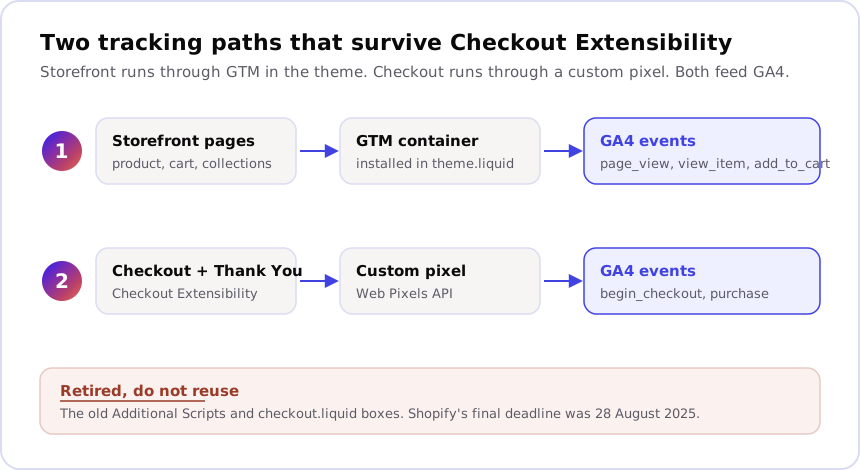
Part one, the theme container:
- Create a container at tagmanager.google.com and copy the container ID
(it looks like
GTM-XXXXXX). - In Shopify admin, open Online Store, then Themes, then Edit code.
- Paste the GTM
<head>snippet as high as possible inside the<head>tag intheme.liquid, and the<noscript>snippet just after the opening<body>tag. - Save. This container now loads on every storefront page, but not on checkout.
Part two, the custom pixel:
-
In Shopify admin, go to Settings, then Customer events, then Add custom pixel.
-
Give it a name and set the permission and data-sale settings to match your consent policy.
-
Paste JavaScript that subscribes to Shopify’s standard events with
analytics.subscribeand sends the matching GA4 event. This is the working shape for the purchase event, sending straight to GA4 withgtag:const script = document.createElement("script"); script.src = "https://www.googletagmanager.com/gtag/js?id=G-XXXXXXX"; document.head.appendChild(script); window.dataLayer = window.dataLayer || []; function gtag(){dataLayer.push(arguments);} gtag("js", new Date()); gtag("config", "G-XXXXXXX", { send_page_view: false }); analytics.subscribe("checkout_completed", (event) => { const checkout = event.data.checkout; gtag("event", "purchase", { transaction_id: checkout.order?.id ?? checkout.token, value: checkout.totalPrice?.amount, currency: checkout.totalPrice?.currencyCode, items: checkout.lineItems.map((item) => ({ item_id: item.variant?.sku ?? item.variant?.id, item_name: item.title, price: item.variant?.price?.amount, quantity: item.quantity })) }); });Swap
G-XXXXXXXfor your Measurement ID, and add acheckout_startedsubscription the same way if you wantbegin_checkout. Thetransaction_idis what lets GA4 drop the duplicate when a shopper reloads the Thank You page. -
Save and connect the pixel.
The catch worth knowing before you start: custom pixels run inside a
sandboxed iframe, so the pixel cannot read the dataLayer or GTM container
sitting in your theme. You either send GA4 hits straight from the pixel, or
load a second, separate GTM container inside the pixel itself. Treating the
storefront container and the checkout pixel as one shared setup is the
mistake that leaves purchase events missing.
Why did my Shopify tracking break after a checkout change?
Shopify tracking usually breaks because the checkout customisation boxes
were removed, not because a tag was deleted. Checkout Extensibility retired
the Additional Scripts field and checkout.liquid, so any GTM snippet or
pixel that lived there stopped firing. The storefront kept tracking, the
checkout went dark, and the numbers that vanished were the ones that
mattered most: purchases.
Shopify rolled this out in stages. The Information, Shipping and Payment steps moved to the new checkout first, with Shopify Plus stores required to migrate during 2024. The Thank You and Order Status pages followed, with a final deadline of 28 August 2025 for Plus stores and 26 August 2026 for everyone else (Shopify’s checkout.liquid documentation). After those dates, code in the old boxes no longer runs.
If your purchase count fell off a cliff around a theme migration, a Shopify Plus upgrade, or one of those deadlines, this is almost certainly the cause. The same pattern shows up in GA4 as conversions that simply stop, which we cover in Google Analytics not tracking conversions.
How do you track GA4 ecommerce events on Shopify?
Track GA4 ecommerce events on Shopify by mapping Shopify’s standard events
to GA4’s ecommerce events inside the custom pixel. Shopify emits events like
product_viewed, product_added_to_cart, checkout_started and
checkout_completed; you translate each into its GA4 equivalent
(view_item, add_to_cart, begin_checkout, purchase) with the product
and order data attached. What Universal Analytics called “enhanced
ecommerce” is just the ecommerce event schema in GA4, so the concept
carries over even though the naming changed.
The purchase event is the one to get right. Send it once, from the
checkout_completed subscription, and include the order value, currency,
the line items, and a transaction_id set to the Shopify order ID. GA4 uses
transaction_id to discard duplicate purchases, so if a shopper refreshes
the Thank You page or returns to it later, the sale is still only counted
once (Google’s GA4 ecommerce documentation). Skip that ID and refreshed
confirmation pages inflate your revenue.
Should GTM go in the theme or a custom pixel?
Use both, because each reaches a part of the store the other cannot. The theme container sees storefront browsing but is locked out of checkout; the custom pixel sees checkout but runs sandboxed away from the theme. Here is how the two compare.
| Question | Theme GTM container | Custom pixel |
|---|---|---|
| Covers storefront pages | Yes | No |
| Covers checkout and Thank You | No | Yes |
| Runs in | The page directly | A sandboxed iframe |
| Can read the theme dataLayer | Yes | No |
| Best for | page_view, view_item, add_to_cart | begin_checkout, purchase |
A single tool does not cover the full funnel on modern Shopify. Trying to force everything through the theme container leaves checkout untracked; trying to force everything through the pixel makes storefront tracking needlessly awkward. Match each path to the pages it can actually see.
How do you check your Shopify tracking actually works?
Confirm Shopify tracking with three checks, in order. First, open Google Tag
Assistant and browse a product to confirm the storefront container fires
view_item and add_to_cart. Second, complete a real test order and watch
GA4 DebugView for a single begin_checkout and a single purchase with the
right value. Third, compare a full day of Shopify orders against GA4
purchases for the same day.
That third check is the one people skip, and it is the one that catches
silent failures. If GA4 shows far fewer purchases than Shopify recorded,
the pixel is missing sales; if it shows more, you have a duplicate event or
a missing transaction_id. For a structured walk through every layer, our
tracking pillar lays out the checks we run before trusting any
GA4 property, and you can start a free
tracking audit to see what your
current setup is really capturing.
Why your GA4 numbers still won’t match Shopify to the penny
Even a clean setup leaves a gap between GA4 and Shopify, because they count different things. Shopify is the till: it records every paid order. GA4 is the camera: it only records purchases where the pixel fired and the shopper allowed tracking. Refunds, consent-blocked sessions, ad blockers and the odd dropped event all pull GA4 below the Shopify total, so a gap of roughly 10 to 15 percent is normal and anything wider is worth investigating.
The bigger danger is trusting an ad platform’s own count over Shopify. On one Shopify subscription box store we audited, Meta Ads Manager was claiming several times the revenue Shopify actually recorded, because it counted view-through conversions where the shopper saw an ad but never clicked. We break that pattern down in why Meta Ads over-report conversions. Whichever platform you optimise on, the fix is the same: reconcile every channel against Shopify, then feed clean conversions back to Google Ads conversion tracking and Meta so the algorithms learn from real sales.
FAQ
How do I add Google Tag Manager to Shopify? Install Google Tag Manager on Shopify in two places. Paste the GTM container snippet into theme.liquid to cover storefront pages (product, cart, collections), then add a custom pixel under Settings then Customer events to cover checkout and the Thank You page. The theme container cannot reach checkout on its own since Checkout Extensibility, so both parts are needed for full coverage.
Does the old Additional Scripts or checkout.liquid method still work? No. Shopify retired the Additional Scripts box and checkout.liquid customisations as part of the move to Checkout Extensibility, with a final deadline of 28 August 2025 for Plus stores and 26 August 2026 for everyone else on the Thank You and Order Status pages (Shopify’s checkout.liquid documentation). Any pixel or GTM snippet that lived in those boxes stopped firing, which is the single most common reason Shopify purchase tracking breaks.
How do I track GA4 purchase and checkout events on Shopify? Track GA4 checkout and purchase events on Shopify with a custom pixel. The pixel subscribes to Shopify’s standard events (checkout_started, checkout_completed) through the Web Pixels API, then sends matching GA4 ecommerce events (begin_checkout, purchase) with the order value and a transaction_id. The transaction_id lets GA4 drop duplicate purchases if a shopper reloads the Thank You page.
Do I need a paid app to install GTM on Shopify? No paid app is required. Google Tag Manager installs for free through the theme code and a custom pixel, both built into Shopify. Paid apps exist and can save setup time, but they add a subscription and another layer between your data and GA4, so most stores are better served by the native setup unless engineering time is the constraint.
Why doesn’t my GA4 revenue match Shopify? Shopify and GA4 rarely match to the penny because they count different things. Shopify records every paid order at the till; GA4 only records purchases where the pixel fired and consent allowed it, so refunds, consent-blocked sessions and checkout tracking gaps all open a gap. Treat Shopify as the source of truth for revenue and GA4 for behaviour, and investigate any gap wider than roughly 10 to 15 percent.
Get your Shopify tracking checked
If your Shopify numbers stopped making sense after a checkout or theme change, that is a scoped fix, not a rebuild. Start with the tell us what’s broken, or book a call. Broken Shopify tracking is one of the most common things we put right, most weeks, and it usually costs less to fix than the wasted ad spend it hides. Measured properly, the numbers hold up: one book-launch campaign we measured came back at 9.4x ROAS confirmed in Shopify, not the ad dashboard, over 26 days.
Frequently asked
How do I add Google Tag Manager to Shopify?
Install Google Tag Manager on Shopify in two places. Paste the GTM container snippet into theme.liquid to cover storefront pages (product, cart, collections), then add a custom pixel under Settings then Customer events to cover checkout and the Thank You page. The theme container cannot reach checkout on its own since Checkout Extensibility, so both parts are needed for full coverage.
Does the old Additional Scripts or checkout.liquid method still work?
No. Shopify retired the Additional Scripts box and checkout.liquid customisations as part of the move to Checkout Extensibility, with a final deadline of 28 August 2025 for Plus stores and 26 August 2026 for everyone else on the Thank You and Order Status pages (Shopify's checkout.liquid documentation). Any pixel or GTM snippet that lived in those boxes stopped firing, which is the single most common reason Shopify purchase tracking breaks.
How do I track GA4 purchase and checkout events on Shopify?
Track GA4 checkout and purchase events on Shopify with a custom pixel. The pixel subscribes to Shopify's standard events (checkout_started, checkout_completed) through the Web Pixels API, then sends matching GA4 ecommerce events (begin_checkout, purchase) with the order value and a transaction_id. The transaction_id lets GA4 drop duplicate purchases if a shopper reloads the Thank You page.
Do I need a paid app to install GTM on Shopify?
No paid app is required. Google Tag Manager installs for free through the theme code and a custom pixel, both built into Shopify. Paid apps exist and can save setup time, but they add a subscription and another layer between your data and GA4, so most stores are better served by the native setup unless engineering time is the constraint.
Why doesn't my GA4 revenue match Shopify?
Shopify and GA4 rarely match to the penny because they count different things. Shopify records every paid order at the till; GA4 only records purchases where the pixel fired and consent allowed it, so refunds, consent-blocked sessions and checkout tracking gaps all open a gap. Treat Shopify as the source of truth for revenue and GA4 for behaviour, and investigate any gap wider than roughly 10 to 15 percent.