- Google Tag Assistant
- GTM
- GA4
- Tracking
Google Tag Assistant: Check Your Tags Are Firing
By Dolphin Analytics team · Published 9 Sept 2026
TL;DR
Google Tag Assistant is Google's free tool for checking your GA4, Google Ads and Google Tag Manager tags fire correctly, showing which fired and how often. Its limits: it only reads Google tags, checks one page at a time, and proves a tag fired, not that the number is true. To check the whole stack with nothing to install, scan the URL with Sonar, our free tracking checker.
Olamide Sule, founder of Dolphin Analytics: a digital analytics expert based in London delivering solutions for agency and in-house clients.
Before we trust a single report, we check that a site’s tags actually fire, and Google Tag Assistant is usually the first tool we open. We do this work for agency and in-house teams most weeks, so this is the walkthrough we’d hand a client: what Tag Assistant checks well, how to read its results, where it stops, and what to reach for when it can’t answer the question.
What is Google Tag Assistant?
Google Tag Assistant is Google’s free tool for confirming that your Google tags fire correctly. It connects to your site in a debug session at tagassistant.google.com, then lists every Google tag it finds, GA4, Google Ads and the Google Tag Manager container, and shows which ones fired and the values each one sent (Tag Manager Help).
It took over from the old Tag Assistant Legacy browser extension, so the check now happens in the web app rather than a Chrome add-on, and it is the same engine that powers GTM Preview mode. That focus is the thing to keep in mind. Tag Assistant is built for Google tags: it will not verify a Meta Pixel or a TikTok tag, and it reads one page at a time, in the session you drive.
How do you check Google Tag Manager is installed correctly?
To check Google Tag Manager is installed correctly, connect the site to Tag Assistant and confirm the container loads once, with the right ID, and that your tags sit under Tags Fired. A container that never connects, loads twice, or shows the wrong GTM- ID is the fault to find first.
- Connect the site. Open tagassistant.google.com, click Add domain, paste your URL and click Connect. From inside GTM, clicking Preview does the same thing and links the session to your container.
- Confirm it connected. A new tab opens your site with a debug badge,
and Tag Assistant shows a Connected panel. No Connected panel means
the container is not loading: check the GTM snippet sits in both the page
<head>and<body>, and that the container ID matches the one in GTM Admin. - Check the container event. In the Tag Assistant timeline, click the first event, Container Loaded. The Google Tag Manager container appears with its GTM- ID. Confirm that ID matches your container, and that it loads once, not twice.
- Read the tags. Open the Tags card for that event. Your tags list under Tags Fired or Tags Not Fired, each with the number of times it fired. A GA4 configuration tag should sit under Tags Fired once.
- Check where each tag points. Click any tag to see the values it sent, the Measurement ID for GA4 or the conversion label for Google Ads, so you can confirm it is pointing at the right property.
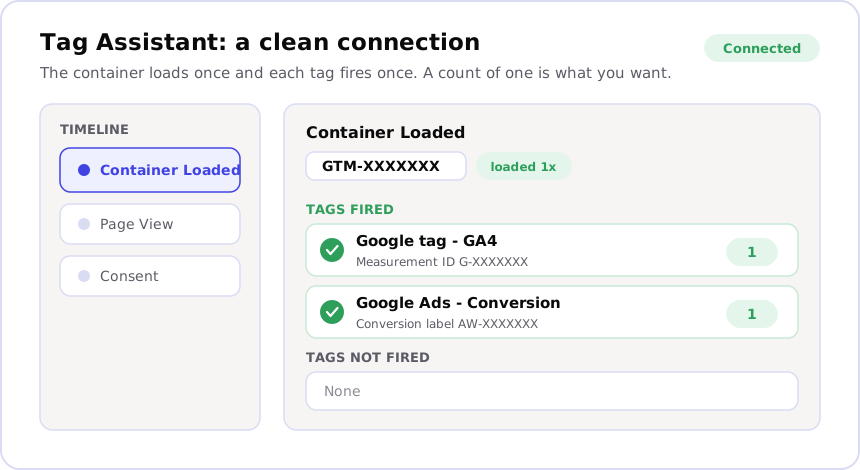
If a tag sits under Tags Not Fired, the trigger is usually the cause, not the tag. Our guide to GTM debugging when tags will not fire walks through reading the failed trigger in order.
How do you know a tag is firing, and not firing twice?
A tag is firing when it appears under Tags Fired for the event you expected, with a firing count of one. The count is the detail people miss: a tag that fires twice on a single page is a real fault, because it counts the pageviews or conversions that tag reports twice and quietly inflates every number built on it.
Click the tag and read the values it sent. For a GA4 event that is the Measurement ID and the event parameters; for a Google Ads conversion it is the conversion label and value. When we audit accounts, a tag that fires cleanly but sends the wrong Measurement ID, so the data lands in a different property, is one of the faults we find most, and Tag Assistant is where it shows up. A duplicate purchase or page_view event is the other one to watch: it reads as growth in the reports and as noise everywhere else.
Where does Google Tag Assistant stop?
Google Tag Assistant stops at three edges. It only reads Google tags, it checks one page in one session that you drive, and it proves a tag fired, not that the number it sent is true. Each edge is where a different tool or a deeper check takes over.
- Only Google tags. A Meta Pixel, a TikTok tag or a LinkedIn Insight Tag will not appear. For those, use the platform’s own helper or the browser Network tab (below).
- One page, one session. Tag Assistant does not crawl a site, so a tag that is missing on a template you did not open goes unseen. A scanner that reads the whole site catches that.
- Firing is not accuracy. A tag can fire perfectly and still report the wrong thing: a consent setup silently blocking EU and UK visitors, or an ad platform claiming conversions the checkout never confirmed. Tag Assistant shows the tag is alive; it cannot tell you the total is right.
How do you check the tags Tag Assistant can’t see?
For the non-Google tags, reach for the platform’s own checker or the browser itself. Three methods cover almost everything Tag Assistant leaves out:
- Meta Pixel: install the Meta Pixel Helper extension, which lights up on any page carrying a Meta Pixel and shows the pixel ID. Our guide to checking a Meta Pixel is firing covers the events it reports and the common faults.
- Any tag, one page: open DevTools (F12, or right-click and choose
Inspect), select the Network tab, reload the page, and filter for the
domain,
collectfor GA4,facebookfor the Meta Pixel,tiktokfor TikTok. The Network tab shows every request the page makes, Google or not. - The whole stack, any site: a tracking checker reads every tag across the pages it reaches, in one pass. Our guide to checking what tracking any website uses covers the manual methods and where each one stops short of a scan.
Check your whole site in one click
Tag Assistant is the right tool for verifying your own Google tags by hand. When you want the whole stack across the site, without installing anything, scan the URL with Sonar, the free tracking checker we built.
Sonar reads a site from the outside, the way a visitor’s browser sees it, and reports the tags, pixels and consent setup it can prove from the scan, in one click, with no account and nothing to install. We build and fix this tracking for agency and in-house teams most weeks. Here is what that gap looked like on one job. Before we started, only 35% of a subscription retailer's UK revenue and 14% of US revenue was tracked, and Meta claimed 6.9 times more revenue than the store recorded. 71% of the conversions Meta claimed came from people who saw an ad and never clicked. The real return was 4.7x, against a dashboard claiming 32.8x. We rebuilt tracking across both stores, including waitlist tracking for upper-funnel demand, and that unlocked a six-figure ad budget: they could spend knowing the true return. The Google tags were present and firing; they simply were not capturing most of the business, which is exactly the gap a firing check alone will miss.
Start with a free Sonar scan to see what is installed and firing on your site. If the numbers still look off and you cannot tell whether it is the tag or the tracking underneath it, tell us what’s broken, or book a call: that conversation is free, and it is built to point you at the right fault. When you already know you need someone inside the account, that is the paid audit, a scoped review that names each fault, its impact and the fix.
Frequently asked
Is Google Tag Assistant free?
Yes. Google Tag Assistant is Google's free tool for checking Google tags. It runs at tagassistant.google.com, connects to your site in a debug session, and lists your GA4, Google Ads and Google Tag Manager tags with whether each one fired and the values it sent. There is nothing to buy and nothing to install beyond the browser you already have.
What's the difference between Google Tag Assistant and Tag Assistant Legacy?
Tag Assistant Legacy was the old Chrome browser extension. Google Tag Assistant took over from it, so the check now happens in the web app at tagassistant.google.com instead of a browser add-on, and it shares the same engine as GTM Preview mode. For everyday checks you use the web app; the legacy extension is no longer the way in.
Why doesn't Google Tag Assistant show my Meta Pixel?
Because Tag Assistant only reads Google tags: GA4, Google Ads and the Google Tag Manager container. A Meta Pixel, a TikTok tag or a LinkedIn Insight Tag will not appear. To check a Meta Pixel, use the Meta Pixel Helper extension, or open the browser Network tab and filter for "facebook".
How do I know if a tag is firing twice?
Tag Assistant shows a firing count next to each tag under Tags Fired. A count of one for the event you expected is correct; a tag that fires twice on a single page usually means a duplicate, which counts the pageviews or conversions it reports twice and inflates the numbers built on it. Click the tag to confirm which event triggered each fire.
Does Google Tag Assistant prove my tracking is accurate?
No. Tag Assistant proves a tag fired and shows the values it sent; it does not prove the number is true. A tag can fire perfectly while consent silently blocks a chunk of EU and UK traffic, or while an ad platform claims conversions the checkout never confirmed. Firing is the first check; whether the totals match the business is a separate one, best answered by a scan or a full audit.