- Meta Pixel
- Facebook Ads
- Tracking
- Attribution
Facebook Pixel Check: Is It Actually Firing?
By Dolphin Analytics team · Published 25 Aug 2026 · Updated 1 Sept 2026
TL;DR
To check a Facebook Pixel (now the Meta Pixel) is firing, install the Meta Pixel Helper extension, watch the browser network tab for a request to facebook.com/tr, or send a live hit to Test Events in Meta Events Manager. All three confirm the pixel loads and sends. None of them prove it sends the right events at the right values, which is where reported sales quietly go wrong. Sonar, our free tracking checker, scans any URL in one click; the deeper reconciliation is work we do most weeks.
Olamide Sule, founder of Dolphin Analytics: a digital analytics expert based in London who fixes tracking and attribution for agency and in-house clients.
Your Meta ads are running, your reported purchases look off, and the first thing you want to rule out is whether the pixel is even on the page. Good instinct, and it takes about a minute to answer. The harder question, the one the free checker tools skip, is what a passing check actually proves. A pixel can fire cleanly and still send Meta the wrong sales. We check and fix pixels for clients most weeks, so here is how to confirm it is firing, and how to tell whether the number it reports can be trusted.
How do you check a Facebook Pixel is firing?
To check a Facebook Pixel (renamed the Meta Pixel in 2022, though almost everyone still says Facebook Pixel) is firing, use one of three checks: the Meta Pixel Helper extension, the browser network tab, or Test Events in Meta Events Manager. Each confirms the pixel loads and sends a hit. They take minutes and need no code. Pick the one that matches how deep you need to go.
1. Meta Pixel Helper (the quick check)
Meta Pixel Helper is Meta’s own Chrome extension. Install it, open the page you want to test, and click the icon. It lists every pixel ID it finds and the events firing on that page (PageView, ViewContent, Purchase, and so on). A green tick means the pixel loaded and the event sent. It also flags common warnings, like a pixel that loaded but sent no events, or an event missing required parameters.
This is the check to reach for first. It answers “is the pixel here and does it do anything” faster than anything else, and it works on any public page, so you can point it at a competitor’s site as easily as your own.
2. The browser network tab (proof, not a plugin’s word for it)
If you want to see the raw request rather than trust an extension, open your
browser’s developer tools (right-click, Inspect, or press F12), switch to the
Network tab, and reload the page. In the filter box type tr. Every time the
pixel fires, you’ll see a request to facebook.com/tr. Click one and read the
query parameters: id is the pixel ID, ev is the event name, and for a
purchase you should see cd[value] and cd[currency].
This method proves the hit left the browser and shows exactly what data went with it. It’s the check that catches a pixel firing the right event with the wrong value attached, which a simple green tick will not.
3. Test Events in Meta Events Manager (confirm Meta received it)
Pixel Helper and the network tab confirm the browser sent something. Test Events, inside Meta Events Manager, confirms Meta received it. Open your pixel, go to the Test Events tab, enter your website URL to pair the browser, then browse the site. Events appear in the panel in real time as you trigger them. This is also where you’ll see whether a purchase arrives once or twice, and whether browser-pixel and Conversions API events are being deduplicated or double-counted.
What does the pixel actually send? A quick reference
Each check looks at the same tag from a different angle. Here is what to look for in each place when you confirm a Meta Pixel.
| Where you check | What confirms it’s firing | What it can also reveal |
|---|---|---|
| Meta Pixel Helper | Green tick with a pixel ID and event name | Duplicate pixels, events with no parameters |
| Network tab | A request to facebook.com/tr on load | The value, currency and event name actually sent |
| Test Events | The event appears in the live panel | Whether Meta receives it once or twice, dedup status |
Why is my Facebook Pixel not firing?
If the pixel isn’t firing, the cause is almost always something in front of it, not the pixel code itself. Work through these in order, because the fix changes depending on which one it is:
- A consent banner is blocking it. If your consent management platform holds tags until the visitor accepts, the pixel won’t fire for anyone who hasn’t clicked accept, and it won’t fire for you until you do either. Test with consent granted.
- An ad blocker or private browsing is stopping the request. Blockers
drop
facebook.com/troutright. Test in a clean browser profile with no extensions before you conclude the pixel is broken. - The base code isn’t on the page you’re testing. Plenty of sites have the pixel on the homepage but not on product or checkout pages. Check the specific page where the event should fire, not just the front page.
- A Google Tag Manager tag is paused or mis-triggered. If the pixel loads through GTM (Google Tag Manager), an unpublished container, a paused tag, or a trigger that never matches will all stop it silently. Use GTM’s Preview mode to see whether the tag fired.
- It’s a single-page site and events don’t refire. On a single-page application the base pixel loads once, but PageView and event hits often don’t refire when the route changes without a full reload. That looks like a pixel that works on landing and dies everywhere else.
Rule out the environment first (consent, blockers, wrong page), then the tag setup (GTM, single-page behaviour). Most “pixel not firing” reports are one of the first two, not a broken pixel at all.
A firing pixel can still report the wrong numbers
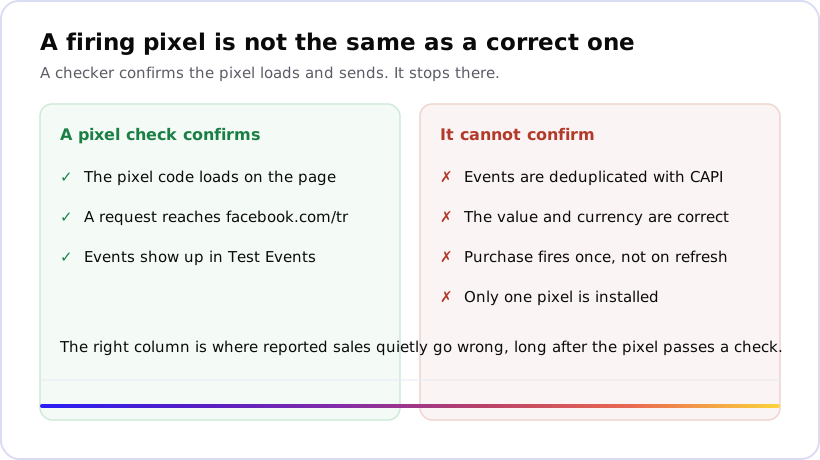
This is the part every checker tool leaves out, and it’s the reason your reported sales can look wrong even when the pixel passes. Firing confirms the pixel loads and sends. It says nothing about whether what it sends is correct. Four faults get past a green tick every time:
- Duplicate events with no deduplication. Many stores now send each
purchase twice: once from the browser pixel and once server-side through the
Conversions API (CAPI). If the two events don’t share an
event_id, Meta counts one sale as two. Both fire, both pass a check, and Meta counts the same sale twice. - Purchase events that fire on refresh. If the Purchase event sits on the order-confirmation page and the shopper reloads it, or bookmarks it, the event fires again. One order, two or three recorded purchases.
- Wrong or missing value and currency. A Purchase event with no
value, or a value in the wrong currency, still fires green. Your return-on-ad-spend maths is then built on numbers that don’t match the till. - A second pixel you forgot about. A theme, a plugin, or an old GTM container can install a second pixel. Both fire, and events get counted across both.
On top of these setup faults sits Meta’s own attribution, which inflates the claimed number even when the pixel is flawless. Meta credits view-through conversions (a shopper who saw an ad but never clicked) and fills gaps with modelled data after Apple’s 2021 App Tracking Transparency change. That is structural, not a bug you can patch.
How big does the gap get? Here is what that looked like on one audit.
Before we started, only 35% of a subscription retailer's UK revenue and 14% of US revenue was tracked, and Meta claimed 6.9 times more revenue than the store recorded. 71% of the conversions Meta claimed came from people who saw an ad and never clicked. The real return was 4.7x, against a dashboard claiming 32.8x. We rebuilt tracking across both stores, including waitlist tracking for upper-funnel demand, and that unlocked a six-figure ad budget: they could spend knowing the true return.
The pixel was firing the whole time. We walk through that reconciliation in detail in why Meta ads over-report conversions.
The point isn’t that the channel was worthless: it was still comfortably profitable, just far short of what the dashboard first suggested. The point is that a pixel check would have said everything was fine, and everything was not.
What a pixel checker can and can’t prove
A pixel checker proves presence and firing. It cannot prove correctness. That line is worth holding onto, because the free tools at the top of the search results all answer the first question and none answer the second. They tell you the pixel is on the page and sending. They can’t tell you the purchase is deduplicated, valued correctly, firing once, or coming from a single pixel.
For a fuller picture of what’s actually running on a site, a scanner that reads the whole stack beats a single-tag check. Sonar is our free version: paste a URL and it reports the ad pixels it finds, whether GA4 is present and firing, the tag manager and measurement IDs, and the consent and dataLayer setup, then flags problems it can prove from the outside. It works with no account and nothing installed, so it reads your own site or a competitor’s the same way. If you also want to check the tags beyond Meta, our guide to checking what tracking a website uses covers the network-tab and extension methods for every major tag.
Get the whole setup checked, not just the pixel
Confirming the Meta Pixel fires is a five-minute job, and now you have three ways to do it. Confirming it reports numbers you can trust is the harder part, and it’s where advertising budgets get set on figures that don’t match real sales. If your reported purchases look off, that’s the signal to check the whole tracking setup, not just whether the pixel loads.
Our free data blind-spot review does exactly that: it checks where your pixel, Conversions API, GA4 and your commerce backend disagree, and which number to trust before you change a single budget line. Start with a pixel that fires, then make sure it’s telling the truth.
Frequently asked
How do I check if my Facebook Pixel is working?
The fastest check is the Meta Pixel Helper Chrome extension: open the page and it lists the pixel IDs found and the events firing. For a deeper look, open your browser's developer tools, go to the Network tab, reload the page, and filter for "tr": a request to facebook.com/tr means the pixel sent a hit. To confirm Meta is receiving events, use Test Events in Meta Events Manager, which shows events arriving in real time as you browse the site.
Why is my Facebook Pixel not firing?
The common causes are a consent banner blocking the tag before it loads, an ad blocker or private-browsing mode stopping the request to facebook.com/tr, the base code missing from the page you are testing, or a Google Tag Manager tag that is paused or has the wrong trigger. On a single-page site the base pixel often loads once but events never refire when the URL changes without a full reload. Test in a clean browser with no blockers and consent accepted first, so you know whether the fault is the pixel or something in front of it.
Does the Meta Pixel Helper prove my pixel is set up correctly?
No. Pixel Helper proves the pixel loads and that events fire, which is necessary but not sufficient. It does not tell you whether a purchase is deduplicated against your Conversions API server events, whether the value and currency on the purchase are correct, or whether the event fires once per order rather than again on every page refresh. A pixel can pass Pixel Helper and still feed Meta inflated or wrong numbers.
My Facebook Pixel fires but the numbers are wrong. Why?
A firing pixel can still report wrong sales for a few reasons: the same purchase sent twice (once by the browser pixel, once by the Conversions API) with no shared event ID to deduplicate them, a purchase event that fires again when the confirmation page is refreshed, a missing or wrong value parameter, or a second pixel installed by another plugin. On top of setup faults, Meta's own attribution counts view-through conversions and modelled data, which inflate the claimed number even when the pixel is perfect.
Is the Facebook Pixel the same as the Meta Pixel?
Yes. Meta renamed the Facebook Pixel the Meta Pixel in 2022, but the code, the fbq function and the facebook.com/tr endpoint are the same tracking tool. Most people, and most search queries, still call it the Facebook Pixel. Anything written about checking a Facebook Pixel applies to the Meta Pixel unchanged.