- Shopify
- Checkout Tracking
- GA4
- Ecommerce Tracking
Shopify Checkout Tracking Not Working? How to Fix It
By Dolphin Analytics team · Published 20 Aug 2026 · Updated 1 Sept 2026
TL;DR
Shopify checkout tracking usually stops working because Checkout Extensibility retired the Additional Scripts and checkout.liquid boxes your old tags lived in. Storefront tracking keeps running while checkout goes dark, so purchase, Google Ads and Meta pixel events vanish. The fix is to move checkout tracking into a custom pixel on Shopify's Web Pixels API, then confirm it in GA4. We repair broken checkout tracking most weeks.
Olamide Sule, founder of Dolphin Analytics: a digital analytics consultancy in London that fixes broken tracking for agencies and in-house teams.
Broken Shopify checkout tracking is money leaking out of your ad platforms right now, so this is a diagnosis, not a lecture. When purchase events stop, GA4 undercounts revenue, Google Ads optimises on nothing, and Meta bids blind. The cause is almost always the same platform change, and the fixes are scoped and repeatable: We repair broken checkout tracking most weeks. Match your symptom to the cause below, then apply the fix.
Why is my Shopify checkout tracking not working?
Shopify checkout tracking usually stops working because Checkout Extensibility
retired the customisation boxes your tracking lived in, not because a tag was
deleted. The Additional Scripts field and checkout.liquid were removed, so
any pixel or conversion snippet pasted there stopped firing. Storefront pages
keep tracking through the theme, which is why the failure looks partial: browse
events still arrive, but checkout and purchase go dark.
Shopify rolled this out in stages. The Information, Shipping and Payment steps moved first, with Shopify Plus stores required to migrate during 2024. The Thank You and Order Status pages followed: 28 August 2025 for Shopify Plus stores, and 26 August 2026 for everyone else (Shopify’s checkout.liquid documentation). After those dates, code in the old boxes no longer runs. If your purchase count fell off a cliff around a theme migration, a Plus upgrade, or one of those deadlines, that timing is your answer.
The rest of this guide is symptom-led. Find the one that matches what you are seeing and go straight to it.
What are the symptoms of broken Shopify checkout tracking?
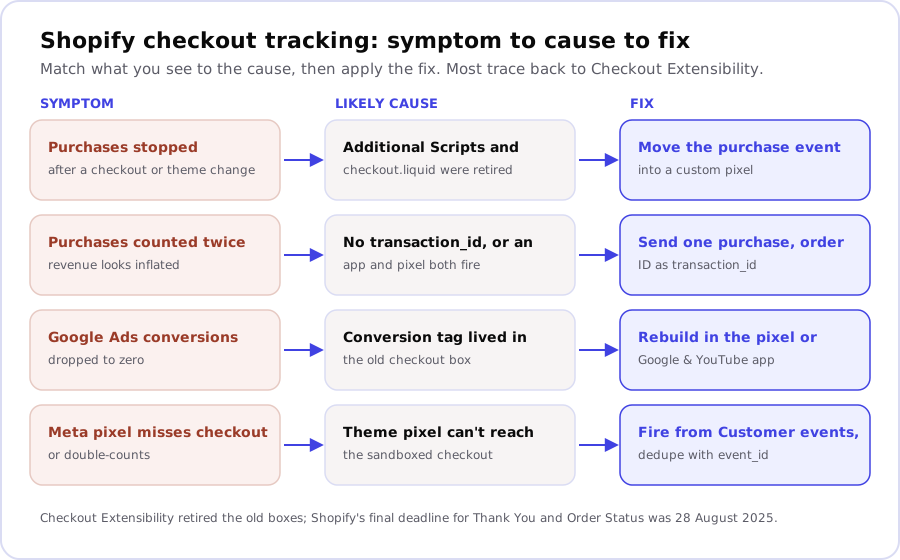
Broken checkout tracking shows up as one of four patterns: purchases that stopped, purchases counted twice, Google Ads conversions that fell to zero, or a Meta pixel that never fires at checkout. Each maps to a specific cause and a specific fix. The table below is the short version; the sections after it work through each one.
| Symptom | Likely cause | Fix |
|---|---|---|
| Purchase events stopped after a checkout or theme change | Additional Scripts and checkout.liquid were retired | Move the purchase event into a custom pixel |
| Purchases counted twice, revenue inflated | No transaction_id, or an app and a pixel both fire | Send one purchase with the order ID as transaction_id |
| Google Ads conversions dropped to zero | Conversion tag lived in the old checkout box | Rebuild it in the pixel or the Google & YouTube app |
| Meta pixel misses checkout, or double-counts | Theme pixel can’t reach the sandboxed checkout | Fire from Customer events, dedupe with event_id |
Purchase events stopped: move tracking to a custom pixel
When purchases stopped after a checkout change, the fix is to send the purchase event from a custom pixel instead of the old checkout box. Shopify’s Web Pixels API runs your tracking in a sandbox that has access to checkout, which the theme no longer does. You subscribe to Shopify’s standard events, then send the matching GA4 event with the order data attached.
The steps:
- In Shopify admin, go to Settings, then Customer events, then Add custom pixel. Name it and set its permission and data-sale options to match your consent policy.
- Add JavaScript that calls
analytics.subscribe('checkout_completed', ...)and, inside it, sends a GA4purchaseevent with the value, currency, line items and atransaction_id. - Do the same for
checkout_started, mapping it to GA4’sbegin_checkout. - Save, connect the pixel, then place a test order to confirm the events arrive.
One trap catches most people: a custom pixel runs sandboxed, so it cannot read
the dataLayer or the GTM container in your theme. Treating the storefront
container and the checkout pixel as one shared setup is the mistake that leaves
purchase events missing. For the full storefront-plus-checkout install, our
Shopify Google Tag Manager setup guide
walks through both halves.
Purchases counted twice: set a transaction_id
Duplicate purchases come from two causes, and both are quick to rule out. Either
the purchase event carries no transaction_id, so GA4 recounts the sale every
time the Thank You page reloads, or an app pixel and your custom pixel are both
firing the same event. Send a single purchase from the checkout_completed
subscription, and set transaction_id to the Shopify order ID.
GA4 uses transaction_id to discard duplicate purchases, so a refreshed or
revisited confirmation page still counts the sale only once (Google’s GA4
ecommerce documentation). If the duplication survives that, open Settings, then
Customer events, and check whether a marketing app has installed its own pixel
that fires purchase alongside yours. Two pixels sending the same order is the
other half of the double-counting problem, and the fix is to keep one and
remove the other.
Google Ads conversions not tracking after the new checkout
Google Ads conversions fall to zero after a checkout change when the conversion
tag was pasted into Additional Scripts or checkout.liquid, both of which
Checkout Extensibility removed. The gtag or conversion snippet no longer runs,
so Google Ads records nothing while orders keep coming. Optimisation then
degrades, because Smart Bidding is learning from an empty conversion feed.
Rebuild the conversion in one of two ways. The lower-effort route is Shopify’s official Google & YouTube channel app, which registers its own pixel and passes purchases to Google Ads and GA4 without theme code. The more controlled route is to fire the Google Ads conversion from your custom pixel, which keeps every tag in one place you own. Either way, turn on enhanced conversions so hashed first-party order data improves match rates. Once conversions flow again, feed them back through a clean setup: our Google Ads conversion tracking guide covers the reconciliation. The same silent-stop pattern in GA4 is covered in Google Analytics not tracking conversions.
Meta pixel not firing at Shopify checkout
A Meta pixel installed in the theme cannot track checkout, because Shopify runs
checkout in a sandboxed environment the theme code never reaches. Add the pixel
as a custom pixel under Settings, then Customer events, so it fires on the
checkout steps and the Thank You page. If you also run Meta’s Conversions API
server-side, pass a shared event_id on both the browser and server events so
Meta deduplicates them instead of counting each purchase twice.
Watch the browser-plus-server combination closely, because it is a common source of inflated Meta numbers. On one Shopify subscription box store we audited, Meta Ads Manager was claiming several times the revenue Shopify actually recorded, driven mostly by view-through conversions where a shopper saw an ad but never clicked. We break that gap down in why Meta Ads over-report conversions. Fixing the pixel is step one; trusting Shopify over the ad platform’s own count is step two.
How do I confirm my Shopify checkout tracking is fixed?
Confirm the fix with three checks, in order, before you trust the numbers again. Each one catches a different class of failure, and the third is the one people skip.
- DebugView. Place a real test order and watch GA4 DebugView for a single
begin_checkoutand a singlepurchase, with the right value and atransaction_id. One of each means the pixel fires cleanly. - Tag Assistant. Use Google Tag Assistant to confirm the storefront
container still fires
view_itemandadd_to_cart, so you have not fixed checkout by breaking browse tracking. - Orders versus GA4. Compare a full day of Shopify orders against GA4
purchases for the same day. Fewer in GA4 means the pixel is still missing
sales; more means a duplicate event or a missing
transaction_id.
That third check is the safety net. Shopify records every paid order at the till; GA4 only records purchases where the pixel fired and consent allowed it. Refunds, consent-blocked sessions and ad blockers all pull GA4 below the Shopify total, so a gap of roughly 10 to 15 percent is normal, and anything wider is worth investigating. For a structured walk through every layer, our tracking pillar lays out the checks we run before trusting any GA4 property.
Get your Shopify checkout tracking fixed
If your Shopify checkout numbers stopped making sense after a checkout or theme change, that is a scoped fix, not a rebuild, and it usually costs less than the wasted ad spend it hides. Start a free tracking audit to see exactly what your current setup is capturing, or use the tell us what’s broken, or book a call. Broken Shopify tracking is one of the most common things we put right, work we do most weeks, and we will come back with what is missing and how to restore it.
Frequently asked
Why did my Shopify checkout tracking stop working?
Shopify checkout tracking usually stops because Checkout Extensibility retired the Additional Scripts box and checkout.liquid, with a final deadline of 28 August 2025 for Plus stores and 26 August 2026 for everyone else on the Thank You and Order Status pages (Shopify's checkout.liquid documentation). Any pixel or conversion tag that lived in those boxes stopped firing. The storefront kept tracking, so the drop looks partial, but every checkout and purchase event went dark. Moving that tracking into a custom pixel restores it.
Why are my Shopify purchase events firing twice?
Duplicate Shopify purchases almost always come from two causes: no transaction_id on the purchase event, or an app pixel and a custom pixel both firing the same sale. Without a transaction_id, GA4 recounts the order every time a shopper reloads the Thank You page. Send a single purchase event from checkout_completed, set transaction_id to the Shopify order ID, and remove any duplicate app that fires the same event.
Why did Google Ads conversions stop after the new Shopify checkout?
Google Ads conversions stop after a checkout change when the conversion tag was pasted into the old Additional Scripts or checkout.liquid box, which Checkout Extensibility removed. The tag no longer runs, so conversions fall to zero even though sales continue. Rebuild the conversion through Shopify's official Google & YouTube channel app, or fire it from a custom pixel, so Google Ads sees real orders again.
Why isn't my Meta pixel tracking Shopify checkout?
A Meta pixel installed in the theme cannot reach Shopify's checkout, because checkout runs in a sandboxed environment the theme code never touches. Add the pixel through Settings then Customer events as a custom pixel so it fires on checkout and the Thank You page. If you also run Meta's Conversions API, pass a shared event_id on both so Meta deduplicates the browser and server events instead of counting each once.
How do I check if my Shopify checkout tracking is fixed?
Place one real test order and watch GA4 DebugView for a single begin_checkout and a single purchase with the correct value and transaction_id. Then compare a full day of Shopify orders against GA4 purchases for the same day. If GA4 shows far fewer, the pixel is still missing sales; if it shows more, you have a duplicate event. A gap of roughly 10 to 15 percent is normal.