- GA4
- Google Tag Manager
- Server-side
- Tracking
- Consent Mode
GA4 Server-Side Tracking: Setup and Tradeoffs
By Dolphin Analytics team · Published 31 Aug 2026
TL;DR
GA4 server-side tracking sends analytics hits to a tagging server you control, usually a server-side GTM container on your own subdomain, which forwards them to GA4. It can recover events ad blockers drop, but adds hosting cost and upkeep. The setup pays off when lost signal changes decisions. We set up and fix GA4 and GTM tracking for clients most weeks, and this is the order we follow.
Olamide Sule, founder of Dolphin Analytics: a digital analytics expert based in London who sets up and fixes GA4 and GTM tracking for agency and in-house clients most weeks.
Server-side tracking is the fix most vendors sell before they have told you whether you need it. This guide covers what GA4 server-side tracking actually is, how the setup works on a server-side Google Tag Manager (GTM) container, and the honest tradeoffs, so you can decide before you spend a weekend on it. We set up and fix GA4 and GTM tracking for agencies and marketing teams most weeks, so this is the walkthrough we would give a client weighing a server container, including the parts a tool vendor leaves out because they want you on their gateway.
What is GA4 server-side tracking?
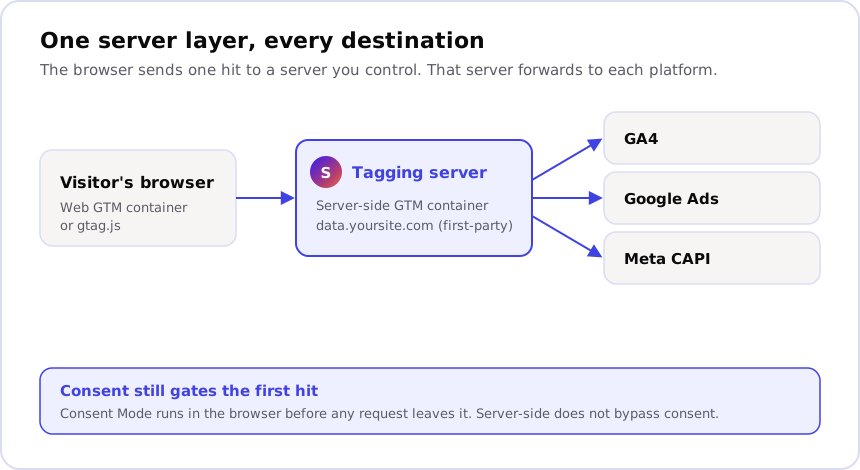
GA4 server-side tracking sends your analytics data to a tagging server you control first, and that server forwards it to GA4, rather than the browser sending hits straight to Google. The server usually runs as a server-side GTM container on a subdomain of your own site (first-party), so the requests look like they belong to your domain. The setup can recover events that ad blockers would otherwise block before they reach a measurement tool.
For a setup, that means three places change, and each one gets its own check.
The web container keeps collecting the same events. The Google tag inside it
gets a new destination, the server_container_url parameter in
Google’s server-side setup steps.
And the server container receives those hits and fires the GA4 tag that passes
them on. Get one place verified before touching the next, and a fault never
hides behind two others.
Server-side vs client-side tracking: what actually changes?
The two setups collect the same events. What changes is where the request goes, how long the cookie survives, and who controls the data in transit.
| Dimension | Client-side (browser) | Server-side (tagging server) |
|---|---|---|
| Where the hit goes | Straight to Google, Meta and each vendor | To your server first, then on to each vendor |
| Cookie lifetime in Safari | Shortened when the cookie is set by script | Shortened the same way behind a CNAME to a managed host; longer only with same-origin or matching-IP serving |
| Ad-blocker exposure | High: blockers match vendor domains | Lower: requests go to your own domain |
| Data control | The vendor receives the full payload | You can redact or enrich before forwarding |
| Setup effort | Low: install a container, add tags | Higher: provision a server and a subdomain |
| Running cost | None beyond the tools | Hosting plus ongoing maintenance |
The cookie point is where most server-side pitches overreach, so read it carefully. Safari’s Intelligent Tracking Prevention deletes cookies created in JavaScript after 7 days without user interaction, per WebKit’s tracking prevention documentation, so a visitor who returns after a fortnight can look brand new. A server-set cookie does not escape that by default. WebKit caps cookies set in third-party CNAME-cloaked responses to 7 days, and its tracking prevention page applies the same cap to third-party IP address cloaking. A subdomain that is a CNAME to a managed host such as Stape does not escape Safari’s cap. Stape’s own Safari ITP guide names the setups that do: same-origin serving, where the container runs on a path of your main domain, or a server whose IP address partly matches your site’s. Check which one you are paying for before you count on longer-lived visitors.
Should you move to server-side tracking?
Move when lost signal is costing you real decisions. If you run meaningful budget on Meta or Google Ads, serve an iOS-heavy audience, or need to clean or redact data before it reaches a vendor, the events you capture back change the numbers you plan against. Server-side also gives you one place to govern every platform’s tags, which is easier to audit than three separate browser integrations.
Do not move yet in three cases. First, if your tracking is broken client-side, fix that before adding a server; a duplicate purchase event or a conversion that stopped firing will break server-side too, and you will have added a layer to debug. Second, if traffic and ad spend are low, the extra signal will not pay back the hosting and maintenance. Third, if no one can own the server, skip it: a tagging server is a small piece of production infrastructure, and an unmaintained one fails quietly. Server-side tracking brings back some lost data; it is not a repair for tracking that never worked. If your GA4 numbers already look wrong, start with why a cookie banner can reduce GA4 sessions before you re-platform.
What you need before you start
A GA4 server-side setup has four moving parts, and getting them straight up front avoids most of the pain:
- A server-side GTM container. This is a separate container type inside your existing Google Tag Manager account, not your web container. It holds the clients and tags that run on the server.
- A tagging server to host it. You can run it on Google Cloud yourself or use a managed host such as Stape that provisions the server for you for a monthly fee. On Google Cloud, the automatic setup deploys settings Google describes as intended for testing and setting up your server container, so live traffic needs an upgrade, and your minimum cost is the number of instances multiplied by the cost per server. Whether your team should run that server or hand it off is a separate decision, covered in server-side GTM: build it in-house or hire it out.
- A first-party domain for the server. Map a subdomain of your own site,
for example
data.yoursite.com, or serve the container from a path on your main domain. Google’s custom domain guide compares both, and notes the default domain can only set JavaScript cookies. Never skip this and point at the host’s default domain. - Your existing web container. It keeps firing events; you just change where it sends them. Nothing about the storefront tags gets rebuilt.
How to set up GA4 server-side tracking, step by step
The order below is the one Google’s own server-side setup guide follows, and it is the order that keeps you verifying as you go rather than debugging everything at the end.
- Create a server container in Google Tag Manager. In your account, add a new container and choose the “Server” type. GTM gives you a container config and asks where you want to host it.
- Provision the tagging server and map your domain. On Google Cloud,
click Automatically provision tagging server, and Tag Manager
deploys a tagging server onto Cloud Run
with a testing configuration. Then follow
Google’s Cloud Run guide
to map the deployment to
data.yoursite.comand add the DNS records it asks for. On a managed host, create the server there with the container config from step 1 and follow the host’s custom-domain instructions, keeping the Safari cookie caveat above in mind. Either way, prove it before moving on: Google’s guide sayshttps://data.yoursite.com/healthyshould show the textok. - Repoint your web container at the server. In the web GTM container,
open your Google tag (the GA4 configuration), expand Configuration
settings, and add the parameter
server_container_urlwith your server’s URL as the value, herehttps://data.yoursite.com, as Google’s GA4 server-side steps describe. This is the switch that puts your server in the middle; until it is set, hits still go straight to Google. - Add the GA4 tag in the server container. Google states the GA4 client is pre-installed on your server-side container by default, so check it under Clients. Then go to Tags > New > Google Analytics: GA4 and give it a Custom trigger on Some Events where Client Name equals GA4, the trigger Google’s setup chapter uses. The client receives the incoming requests; the tag forwards the events to your GA4 property.
- Verify in Preview and DebugView. Use GTM Preview on the server container and GA4 DebugView together, and confirm the same events arrive through the server that used to arrive in the browser. Do not add anything else until this is clean.
- Add the other platforms once GA4 is proven. Google Ads and Meta CAPI tags go on the same server, so one server layer feeds every destination.
Where server-side setups go wrong
Most failures are not the server refusing to run. They are quieter than that, and they are the same handful every time.
Consent still applies. A common myth is that server-side tracking bypasses consent because the hit comes from your infrastructure. It does not. The browser still sends the first request, so UK and EU consent rules still cover it. Consent Mode runs in the browser before anything reaches the server: Google’s Consent Mode guide has you set the default consent state on every page before any command sends measurement data, and the Google tag adjusts its cookies and events to match. Treat the server as a new destination for consented data, not a way around asking.
The server-set cookie has to count as first-party in Safari. If your subdomain is a CNAME to a host on a different IP, or you point at the host’s default domain, you pay the setup cost of server-side and still get the 7-day cookie cap WebKit applies to cloaked responses. Open the site in Safari, check the cookie your server sets, and confirm its expiry before you report longer-lived visitors to anyone.
Missing deduplication counts each Meta CAPI purchase twice. Once you add Meta’s
Conversions API on the server, the browser Pixel and the server both send each
purchase. Meta’s deduplication rules
match the Pixel’s eventID to the server’s event_id, and the event names
must match too; when both pairs match within 48 hours, Meta discards the later
copy. Send the purchase without a shared ID and Meta counts one sale as two.
We cover the fix in why a Meta CAPI setup
under-reports.
Someone has to maintain it. A tagging server is production infrastructure. It needs the host kept current and the container watched, and when it falls over your data stops, silently. Budget the upkeep, not just the build.
What server-side tracking does not fix
Server-side changes how events reach your tools. It does nothing about whether those events are right in the first place. A duplicate event still duplicates, a conversion that stopped firing after a checkout change still does not fire, and an ad platform that over-credits view-through conversions still over-credits them once the data arrives. If Ads Manager already claims more sales than your commerce platform confirms, a server will forward that same wrong number faithfully.
So sequence it correctly: get client-side tracking right, then move server-side to recover what browsers are dropping. Doing it the other way round just adds a layer between you and the fault. The checks we run before trusting any setup sit on the tracking pillar, and they come before the re-platform, not after.
Getting server-side tracking set up properly
We’ve set up hundreds of GA4 properties and Tag Manager containers for agency
and in-house clients, and a server container gets the same order as the steps
above. We fix what is broken client-side first, prove each layer with
/healthy, Preview and DebugView, and only then add Google Ads and Meta to the
server. Before any of that, you can see what is firing on your site today with
Sonar, a free, one-click scan that
reports the tags, pixels and consent setup it can prove from the outside, with
no account needed. Would you rather talk it through with a person?
Tell us what’s broken, or book a call.
Frequently asked
What is GA4 server-side tracking?
GA4 server-side tracking sends analytics data to a tagging server you control, and that server forwards the data to GA4, instead of the browser sending hits straight to Google. The server usually runs as a server-side Google Tag Manager container on a subdomain of your own site, so the requests go to your domain and are harder for ad blockers to match. The visitor's browser still fires the first request; the difference is where that request goes and what happens to it next.
Is server-side tracking worth it?
It is worth it when you are losing enough measurement signal that it changes decisions: an iOS-heavy audience, meaningful ad spend on Meta or Google Ads, or a need to enrich or redact data before it reaches a vendor. It is not worth it if your tracking is broken client-side, if traffic is low, or if no one can maintain a server. Server-side tracking brings back some lost data; it does not repair a tag that never fired correctly in the first place.
Do I still need cookie consent with server-side tracking?
Yes. Moving tags to a server does not remove the duty to ask for consent. Consent Mode runs in the browser, before any request leaves it, so a server-side setup sees the same consent state a client-side one does. A common myth is that server-side tracking sidesteps consent because the hit comes from your server; it does not, because the browser still sends the first request and UK and EU consent rules still apply to it.
How much does a server-side GTM container cost to run?
The running cost follows the hosting choice you make in step 2 of the setup. Google's automatic provisioning deploys a Cloud Run testing configuration meant for setting up the container, so live traffic needs an upgrade, and Google puts your minimum cost at the number of instances multiplied by the cost per server. A managed host such as Stape charges a monthly fee instead. Whichever you pick, budget for the upkeep as well as the build.
Does server-side tracking improve GA4 data accuracy?
It improves collection, not correctness. A first-party server-side setup can recover events that ad blockers would block, and, with same-origin or matching-IP serving, visitors that Safari's cookie limits would otherwise reset. It does nothing about events that fire twice, conversions that stopped firing after a site change, or attribution that over-credits ads. Server-side tracking gives GA4 more complete input; the tags feeding it still have to be correct.