- GA4
- Tracking
- Audit
- Analytics
GA4 Audit Checklist: 5 Passes, What Each Catches
By Dolphin Analytics team · Published 13 Aug 2026 · Updated 1 Sept 2026
TL;DR
A GA4 audit checks five things in order: data collection (the right Measurement ID and one clean data stream per domain), the events and key events the business needs to measure, Consent Mode for EU and UK visitors, whether GA4's numbers reconcile with a source you trust like Shopify or the CRM, and the reporting and integrations layered on top. Most GA4 problems trace back to one of those five, not to GA4 itself. The same five layers are how we run our own paid GA4 audits for clients.
Olamide Sule, founder of Dolphin Analytics: a digital analytics expert based in London who sets up and audits GA4 for agency and in-house teams every week.
If a dashboard number looks wrong, GA4 is the first place people look and the first place they give up. This is the checklist we run before trusting any GA4 property, ordered so the checks that catch the most common faults come first. Work top to bottom: each pass assumes the one above it is already clean, because a consent problem hides behind a collection problem, and a reporting problem hides behind both.
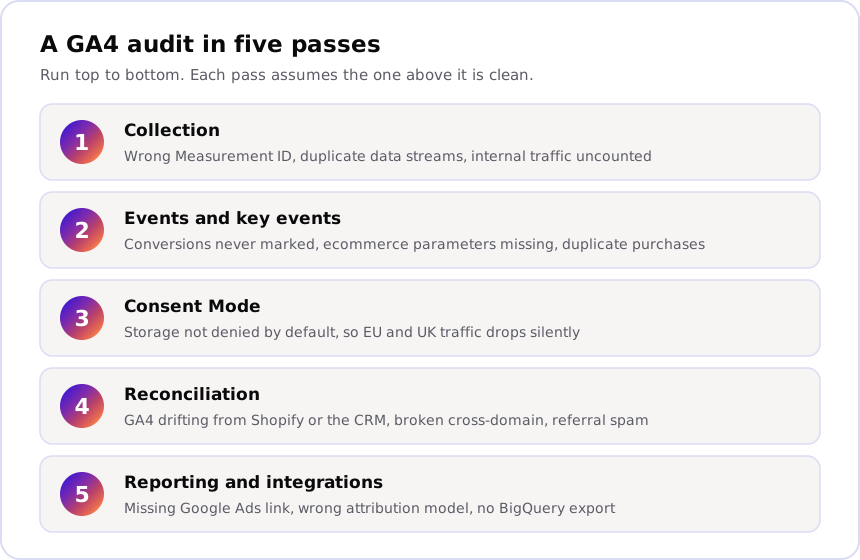
Pass 1: is GA4 collecting the right data at all?
Start with collection, because every later number depends on it. Confirm the Measurement ID on the live site matches the one in GA4, that there is exactly one web data stream per domain, and that internal and developer traffic is filtered out. A second, forgotten stream from an old redesign is one of the most common causes of double-counted sessions.
Run these checks in Admin:
- Data Streams: the Measurement ID (
G-XXXXXXX) on the page matches the stream, and there is one stream per domain unless you have a deliberate reason for more. - Enhanced measurement: scroll, outbound click, site search, video and file-download tracking sit behind one toggle. Check it is on and fully configured; site search with no query parameter set records nothing.
- Data Settings > Data Filtering: an internal-traffic filter exists and is set to Active, not Testing, so office and agency visits stop inflating every report.
- Data Settings > Data Retention: set to 14 months rather than the shorter default. That ceiling only affects Explorations and funnels, but the shorter default throws away history you will want later.
- Reporting identity and Google Signals: confirm these match your consent and privacy position, since both change how users are counted and de-duped.
If collection is wrong, stop here. There is no point auditing events that are landing in the wrong property.
Pass 2: are the events and key events measuring what the business cares about?
Once collection is clean, check that GA4 is recording the actions that matter and marking the right ones as key events (GA4’s term for what used to be called conversions). The fastest way is to open DebugView and walk your own core journeys: homepage, a product or service page, and whatever counts as a conversion, watching each event land in real time.
For every key journey, confirm:
- The event fires once, not twice. A duplicate
purchasefrom a migrated tag inflates revenue and conversion counts. DebugView shows duplicates immediately. - Parameters are populated, not just present. On
purchase, checkvalue,currencyanditemsactually carry data; an emptyvaluequietly zeroes out revenue reporting. - Key events match the business. In Admin > Events > Key events,
the marked events are the ones the business calls conversions. A classic
gap:
purchaseis marked, but a newergenerate_leadevent from a form rebuild never gets added, so those leads stay invisible in every report that counts key events. - Naming is consistent. Snake-case, no near-duplicates like
sign_upandsignupsplitting one action across two events.
This pass is where developer or GTM access earns its place. Tools can see that an event fired; only the container or dataLayer tells you what triggered it and why a duplicate exists.
Pass 3: is Consent Mode set up so EU and UK traffic is not silently lost?
If the site serves UK or EU visitors, Consent Mode should default analytics storage to denied until a visitor opts in, and GA4 should model the gap rather than dropping that traffic entirely. This pass catches a fault that looks like a traffic drop but is really a consent misconfiguration, and it is easy to miss because the reports still populate; they just populate low.
Check the following:
- Default state is denied. Analytics and ad storage default to denied before the banner is actioned, then update on opt-in. Google’s Consent Mode documentation sets out the signals GA4 expects.
- The consent rate is believable. In Admin > Data Settings > Data Collection, compare consented against modelled traffic. A very low consent rate usually points at a broken banner or a Tag Manager sequencing issue, not genuine visitor reluctance.
- No personal data is landing in GA4. Emails or names in page paths or event parameters breach Google’s terms and your own privacy position. Spot check URLs and parameters for anything that identifies a person.
Getting the tag order wrong here, so GA4 fires before the consent signal, is one of the quieter ways UK and EU numbers go wrong. If you are not sure what is currently firing and in what order, Sonar, our free scan, reports the tags, pixels and dataLayer events it can see on a page, in one click with no account needed, which is the fastest way to see the truth before you judge it.
Pass 4: do GA4’s numbers reconcile with a source you actually trust?
A GA4 property can be configured perfectly and still be wrong, so the fourth pass compares GA4 against a source of truth: Shopify orders, Stripe payments, or CRM leads. Pick a clean date range, pull the same metric from both, and size the gap. A few percent is normal; a large or growing gap is the signal an audit exists to explain.
When the numbers disagree, these are the usual causes:
- Cross-domain tracking is broken. A checkout on a second domain starts a new session, so one purchase looks like two visitors and attribution snaps to “direct” or “referral”. Confirm your domains are listed under Data Streams > Configure tag settings > Configure your domains.
- Referral exclusions are missing. Payment gateways bouncing users back to the site (PayPal, Stripe, a booking provider) show up as referral traffic and steal credit from the real source unless excluded.
- UTM hygiene is poor. Inconsistent campaign tagging scatters one channel across several rows, so the channel report understates paid or email.
- Bot and internal traffic slips through. Revisit the Pass 1 filter if humanised-looking sessions inflate the count.
Reconciliation is also where GA4 audits shade into wider attribution work. GA4 measures the website; it cannot see revenue that never touched it. If a large share of deals are entered straight into a CRM, or ad platforms are claiming conversions your store cannot confirm, GA4 will look wrong when it is simply blind to that path. That gap between what platforms claim and what the business confirms is exactly what our Meta over-reporting breakdown walks through with real numbers.
Pass 5: are reporting and integrations set up to make the data usable?
The last pass checks the layer that turns clean data into decisions: integrations, attribution and exports. These faults do not corrupt the underlying data, but they quietly limit what anyone can do with it.
- Google Ads is linked. Without the link, GA4 conversions never reach campaign bidding and you optimise on Google Ads’ own conversion view alone.
- The attribution model is a deliberate choice. GA4 defaults to data-driven attribution; confirm that suits the business rather than inheriting it by accident, and know it will not match a last-click platform.
- Channel groupings are clean. Custom channel groups and consistent UTMs keep paid, organic and email from bleeding into “unassigned”.
- BigQuery export is on where it is needed. The free BigQuery export is the fix for GA4’s sampling and retention limits: ad-hoc queries can sample once one crosses 10 million events, and raw exported data sidesteps both that and the 14-month cap. Turn it on early, because it only captures data from the day it is enabled forward.
Which tools actually help, and where they stop
A tool is the right way to start a GA4 audit and the wrong way to finish one.
GA4’s Admin panel and DebugView, Google Tag Assistant, and configuration
checkers like the GA4 Auditor tool all flag settings fast: a missing key
event, a retention default, an unlinked Ads account. What they cannot judge is
business meaning. A tool sees that a purchase event fires; it cannot tell you
the value on it is half the real order total, or that the lead form that
matters most was never tracked at all.
That is the split worth remembering. Automated checks cover the mechanical half of Passes 1, 2 and 5. The judgement calls, whether the events match the business, whether the consent rate is real, whether GA4 reconciles with revenue, are the half that decides whether you can trust the numbers, and they need a person who has seen the failure modes before. If you are choosing the platform underneath all this rather than auditing it, our digital analytics tools comparison covers GA4 against Adobe, Amplitude, Mixpanel, PostHog and Matomo.
Run the checklist, then get a second pair of eyes
Most GA4 problems are not exotic. They are a duplicated tag, a key event nobody marked, a consent banner blocking more traffic than anyone realised, or a number that never matched the CRM. Working through these five passes in order finds the majority of them, and the ordering matters as much as the checks: fix collection before events, events before consent, and reconcile against real revenue before you trust a single report.
This ordered review is exactly how our paid audit works: five layers, run inside your GA4 and Google Tag Manager, ending in a written findings report that names each fault, its impact and the fix. We run this work for agency and in-house clients most weeks. Here is what that meant on one engagement: For a B2B marketing agency, a GDPR audit and fix helped the agency's car rental client avoid exposure to a fine of up to €20M or 4% of annual turnover. The agency protected a six-figure retainer and resold our fix at a 40% markup. For the wider picture of how we approach tracking, see the tracking work on the homepage.
If your GA4 numbers do not add up and you want a second pair of eyes on the setup, talking to us is the fastest way to find out what is actually wrong, before a bad number drives a decision it should not.
Frequently asked
How long does a GA4 audit take?
A single-property GA4 audit usually takes half a day to a day: checking data collection, events and key events, Consent Mode, then reconciling GA4 against a source of truth like Shopify or the CRM. Multi-brand or multi-domain setups take longer because each data stream needs its own pass through the same checklist.
Can I run a GA4 audit without developer access?
Mostly, yes. GA4's Admin panel, DebugView and the Tag Assistant Chrome extension cover the bulk of the checklist without touching code. Confirming what a tag actually fires on, and why a duplicate event appears, usually needs someone who can read the GTM container or the site's dataLayer, so keep developer access (or a screen share) on hand for the events pass.
What free tools can I use for a GA4 audit?
GA4's own Admin panel and DebugView, Google Tag Assistant, and the GA4 Auditor tool all run a free first pass on configuration. They flag settings, not business meaning: a tool can see that a purchase event fires, but not whether the value on it matches real revenue. Sonar, our free tracking checker, reports the tags and dataLayer events it can see firing on a page so you can see what is actually running before you judge it.
How often should you re-audit GA4?
Treat a GA4 audit as event-triggered, not calendar-triggered. Re-run the checklist after any site migration, checkout or booking-flow rebuild, GTM container change, or consent banner update. Outside of those, a light quarterly pass over data streams, key events and consent rate catches drift before it compounds into a quarter of bad decisions.
What is the difference between a GA4 audit and a full tracking audit?
A GA4 audit checks one platform. A full tracking audit checks GA4 alongside Meta Pixel, Google Ads conversion tracking, server-side setups and consent, then reconciles all of them against each other and against real revenue. If your numbers disagree across platforms, a GA4-only audit will not tell you why; the wider check will.