- GA4
- Measurement Protocol
- Server-side
- Tracking
GA4 Measurement Protocol Explained, With Examples
By Olam Sule · Published 17 Sept 2026
TL;DR
The GA4 Measurement Protocol is Google's API for sending events to GA4 from a server: an HTTPS POST to the mp/collect endpoint with an API secret. Teams use it for offline sales, refunds, renewals and CRM stage changes. Events only join the visitor if they carry the browser's client_id and session_id. We fix GA4 tracking for clients most weeks; server events that land as Unassigned are the top fault.
Olamide Sule, founder of Dolphin Analytics: a digital analytics expert based in London who sets up, audits and fixes GA4 and GTM tracking for agency and in-house clients most weeks.
Most GA4 tracking starts in the browser, but a lot of what a business cares about happens after the visitor leaves: the sales call, the refund, the renewal charged a month later. The Measurement Protocol is how those events get into GA4. We set up and fix GA4 and GTM tracking for agency and in-house clients most weeks, so this is the explainer we hand a developer before they start: what the protocol is, a working payload, the limits, and the faults that quietly break attribution.
What is the GA4 Measurement Protocol?
The GA4 Measurement Protocol is Google’s API for sending events to a Google
Analytics 4 property directly from a server. Your backend sends an HTTPS POST
with a JSON body to the mp/collect endpoint, authenticated by a measurement
ID and a private API secret. Google’s own
overview
describes it as a way to add to automatic collection, not replace it.
The name causes some confusion. Universal Analytics had its own Measurement
Protocol, with a different endpoint and UA- tracking IDs, and it stopped
working when Universal Analytics stopped processing
data. Anything you read
that mentions tid=UA- or hit types like pageview describes the old version.
Everything below is the GA4 version.
When should you use the Measurement Protocol?
Use it for events that happen somewhere the GA4 browser tag cannot reach. The common cases we wire up for clients:
- Offline and CRM conversions. A lead becomes a qualified deal in HubSpot
or Salesforce days after the form fill. The CRM (or a small script watching
it) sends a
qualify_leadorclose_convert_leadevent. - Server-confirmed purchases. The payment provider’s webhook confirms the order, so the purchase is recorded even when the thank-you page never loads.
- Refunds. A
refundevent with the originaltransaction_idtakes the revenue back out of GA4’s ecommerce reports. - Subscription renewals. A billing system such as Recharge or Stripe charges a renewal with no website visit at all.
Don’t use it to replace the browser tag. Server events carry no page, referrer or browser context unless you add them, so page views and on-site behaviour still belong to gtag.js or Google Tag Manager.
Measurement Protocol vs server-side tagging: what’s the difference?
Server-side tagging and the Measurement Protocol both put a server in the path, which is why people mix them up. The difference is who creates the event. With server-side GTM, the browser still fires the hit and a tagging server forwards it. With the Measurement Protocol, your own backend creates the event from scratch.
| Server-side GTM | Measurement Protocol | |
|---|---|---|
| Who creates the event | The browser tag | Your backend code |
| Needs a visitor on the site | Yes | No |
| Typical events | Page views, clicks, add to cart, purchase | Refunds, renewals, CRM stages, offline sales |
| Infrastructure | A tagging server on a first-party subdomain | Any server that can make an HTTPS request |
| Sends to | GA4, Google Ads, Meta CAPI and more | GA4 only |
| Joins to the visit | Automatically, via the browser cookie | Only if you pass client_id and session_id |
Plenty of setups run both: a tagging server for on-site behaviour and the Measurement Protocol for what happens after. If you’re deciding whether a tagging server is worth running at all, our guide to building server-side GTM in-house or hiring it out covers the cost side.
How do you send an event with the Measurement Protocol?
Sending an event takes five steps: create a secret, capture the browser IDs, build the payload, validate it, then send it live. The steps below follow Google’s sending events guide for a web data stream.
Step 1: Create an API secret
In GA4, go to Admin > Data collection and modification > Data streams,
select your web stream, then open Measurement Protocol API secrets >
Create. Give it a name such as crm-backend and copy the secret value. On
the same stream page, copy the Measurement ID (it starts with G-).
Keep the secret on the server. Google’s documentation says the api_secret
must never appear in client-side code, because anyone holding it can send
junk events into your property.
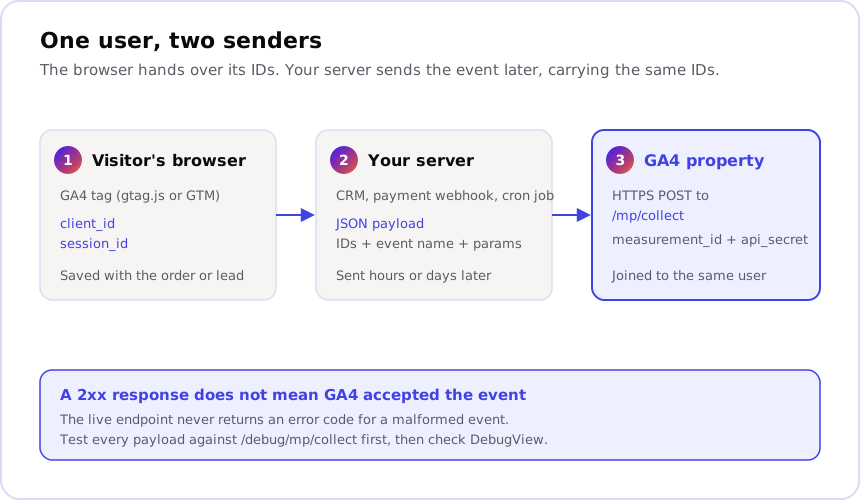
Step 2: Capture client_id and session_id in the browser
The server event needs the same client_id the browser tag uses, or GA4
counts it as a brand new user. Read both IDs with gtag when the lead or order
happens, and save them alongside the record:
gtag('get', 'G-XXXXXXXXXX', 'client_id', (clientId) => {
  document.querySelector('#ga_client_id').value = clientId;
});
gtag('get', 'G-XXXXXXXXXX', 'session_id', (sessionId) => {
  document.querySelector('#ga_session_id').value = sessionId;
});
Hidden form fields are the simplest store for a lead form. For ecommerce, write the two values into the order’s metadata at checkout. When we audit accounts, a missing step 2 is the fault we find most: the backend sends perfectly valid events with no way to tie them to the visit that earned them.
Step 3: Build the JSON payload
A refund, sent from the server, looks like this:
{
  "client_id": "1234567890.1726500000",
  "user_id": "cust_48213",
  "consent": {
    "ad_user_data": "GRANTED",
    "ad_personalization": "GRANTED"
  },
  "events": [
    {
      "name": "refund",
      "params": {
        "session_id": "1726500000",
        "engagement_time_msec": 100,
        "transaction_id": "T-10442",
        "currency": "GBP",
        "value": 59.00
      }
    }
  ]
}
client_id and events are the parts you can’t leave out. user_id is
optional and only useful if you already send one from the browser. The
consent object passes the visitor’s ad consent state; set it from what the
visitor actually chose, never a hard-coded GRANTED. Putting session_id and
engagement_time_msec in the params is what lets GA4 attach the event to a
session.
Step 4: Validate against the debug endpoint
The live endpoint returns a 2xx status for anything it receives, malformed or not. Send the payload to the validation server first:
curl -X POST \
  "https://www.google-analytics.com/debug/mp/collect?measurement_id=G-XXXXXXXXXX&api_secret=YOUR_SECRET" \
  -H "Content-Type: application/json" \
  -d @refund.json
A clean payload returns {"validationMessages": []}. Anything else names the
field and the problem, for example NAME_INVALID for a bad event name.
According to Google’s validation
docs,
events sent to the debug endpoint never show up in reports, so test freely.
Step 5: Send it live and check DebugView
Remove /debug from the URL to send to https://www.google-analytics.com/mp/collect.
Properties that must keep data in the EU can use
https://region1.google-analytics.com/mp/collect instead. For the first live
test, add "debug_mode": true to the event params, then open Admin > Data display >
DebugView and look for the event. If nothing appears, work through why GA4
DebugView shows no events before touching
the payload again.
What are the Measurement Protocol limits?
GA4 enforces hard limits on every request, and a payload over any of them is dropped or truncated without an error on the live endpoint. The figures below come from Google’s Measurement Protocol reference:
- Up to 25 events in one request.
- Up to 25 parameters per event, and up to 25 user properties per request.
- Event names and parameter names of 40 characters or fewer.
- Parameter values of 100 characters or fewer on standard GA4 (500 on Google Analytics 360).
- A POST body smaller than 130kB.
- A
timestamp_microsno more than 72 hours in the past.
The 72-hour window matters most for offline conversions. A deal that closes two weeks after the enquiry can’t be backdated to the enquiry date; it lands on the day you send it. Plan reports around that, or record the lag as a parameter.
Why do Measurement Protocol events break attribution?
Nearly every broken setup we see traces back to one of four faults. None of them produce an error message, which is why they survive for months.
Events arrive as unassigned. The server sent a valid event with no
session_id, or with one that matches no real session. GA4 can’t link it to
the visit, so the purchase or lead shows a traffic source of (not set) or
Unassigned. Simo Ahava’s write-up on session attribution with the
Measurement
Protocol
goes deeper on how GA4 joins the two.
Every server event creates a new user. A developer generated a random
client_id because the real one wasn’t stored. User counts inflate, and every
conversion looks like it came from a first-time visitor with no history.
Purchases count twice. The browser tag fires purchase on the thank-you
page and the payment webhook sends it again from the server. Pick one sender
per event. If the server is the source of truth, remove the browser purchase
tag, and always send the same transaction_id your ecommerce platform uses.
Consent gets ignored. Moving an event to the server doesn’t remove the
duty to respect what the visitor chose. If the visitor declined analytics
cookies, there’s no stored client_id to send, and inventing one to fill the
gap defeats the choice they made.
How we set up Measurement Protocol tracking for clients
We’ve set up hundreds of GA4 properties and Tag Manager containers for agency and in-house clients, and the Measurement Protocol work that holds up always starts from the joining, not the API call. We map where each ID is captured, where it is stored, which system sends each event, and how consent passes through, then validate every payload before it reaches a live property. That sequencing is the same one behind the checks on our tracking page.
Sonar can’t see server events, because they never touch the browser. It can show whether the GA4 tag your server events depend on is firing: run a free one-click Sonar scan of your site to check. If you’re planning a Measurement Protocol build, or your server events are already landing as Unassigned, tell us what’s broken, or book a call.
Frequently asked
What is the Measurement Protocol in GA4?
The GA4 Measurement Protocol is an API that lets a server send events directly to a GA4 property over HTTPS, without a browser tag. You POST a JSON payload to the mp/collect endpoint with your measurement ID and an API secret created in the GA4 data stream settings. Google designed it to add events the tag cannot see, not to replace browser tracking.
Is the Measurement Protocol the same as server-side tagging?
No. Server-side tagging, usually a server-side Google Tag Manager container, receives the hits a browser tag sends and forwards them to GA4 and other platforms. The Measurement Protocol skips the browser entirely: your own backend builds the event and calls the API. Many setups use both, with server-side GTM for on-site behaviour and the Measurement Protocol for offline or delayed events.
Why are my Measurement Protocol events showing as unassigned or not set?
The event almost always arrived without a session_id that matches a real browser session, or with an invented client_id. GA4 then cannot join the event to the visit that brought the user in, so the traffic source is lost. Capture both IDs in the browser at the moment of the lead or order, store them with the record, and send them back with the server event.
How do I test Measurement Protocol events?
Send the payload to the validation endpoint, /debug/mp/collect, which returns a validationMessages array describing any errors and never writes to reports. Once it returns an empty array, send to the live endpoint with debug_mode set in the event params and watch the event arrive in GA4 DebugView. Never trust the live endpoint's 2xx status on its own.
Should I build Measurement Protocol tracking myself or get help?
A developer can send a valid test event by following Google's sending events guide. The work that goes wrong is the joining: capturing the right IDs, stopping the browser and server both sending the same purchase, and handling consent. We set up and fix GA4 and GTM tracking for clients most weeks; if you want to talk a build through before it goes live, send us a message or book a call.