- GA4
- Ecommerce Tracking
- Google Tag Manager
- Troubleshooting
GA4 Duplicate Purchase Events: A Worked Diagnosis
By Dolphin Analytics team · Published 28 Sept 2026
TL;DR
GA4 duplicate purchase events almost always come from more than one thing sending the purchase, or from purchases sent without a stable transaction_id. GA4 deduplicates purchases that share a transaction ID on web streams, so duplicates in reports mean a missing or changing ID, a second tag, or a reload trigger. We run this diagnosis for clients regularly.
Olamide Sule, founder of Dolphin Analytics: a digital analytics expert based in London delivering solutions for agency and in-house clients.
GA4 duplicate purchase events are one of the faults we find most often when we fix ecommerce tracking for agencies and in-house teams. The pattern is familiar: GA4 reports more purchases or bookings than the business actually took, and nobody trusts revenue by channel any more. Teams end up pulling their hair out with data challenges they cannot see from the reports. Below is one anonymised audit result, then the checks we run on every audit, written as steps you can use on your own property.
Why does GA4 count more purchases than your booking system?
GA4 counts more purchases than your booking or order system when the purchase
event reaches GA4 more than once per order, or when repeat hits carry no
stable transaction_id to match them. Google’s purchase event reference
describes transaction_id as the unique identifier of a transaction that
“helps you avoid getting duplicate events for a purchase”
(Google Analytics events reference).
Google’s help centre is more specific. GA4 deduplicates purchase events with the same transaction ID, the deduplication works only for web streams, not app streams, and an empty string as the ID makes GA4 deduplicate every purchase sent with that empty value (Minimize duplicate key events with transaction IDs). So a duplicate that survives into your reports tells you something: the two hits did not share a usable ID. Either the ID was missing, it changed between hits, or a second source sent the purchase without one.
What did the hotel group audit find?
Here is what the audit turned up.
Working through a marketing agency, across a 16-hotel group we found duplicate purchase events inflating booking counts, plus untagged booking subdomains and a failing tag container. It gave them their first accurate property-level view of direct bookings.
Duplicates, untagged pages and a broken container look like one symptom in reports, but each needs a different check. Duplicate purchase events inflate the count. Untagged pages hide purchases from GA4 altogether. A failing tag container makes the data unreliable in ways that change from page to page.
How did we check, and in what order?
We work through purchase duplicates from the order system inward to the tag, because each step narrows where the extra event comes from. The order matters: you want to know whether the problem is duplicates, missing data or both before you touch a trigger.
- Reconcile against the source of truth. Take a day of confirmed bookings from the booking system and put them beside GA4 purchases for the same day. In GA4, open Explore, start a Free form exploration, add the Transaction ID dimension and the Event count metric, filtered to the purchase event (Free-form exploration). Transaction IDs that appear more than once are duplicates. Bookings in the system with no matching ID in GA4 are missing data, which points at untagged pages.
- Watch one test booking in DebugView. Turn on debug mode through
Tag Assistant or GTM Preview,
then open Admin, then DebugView under Data display. Make a test
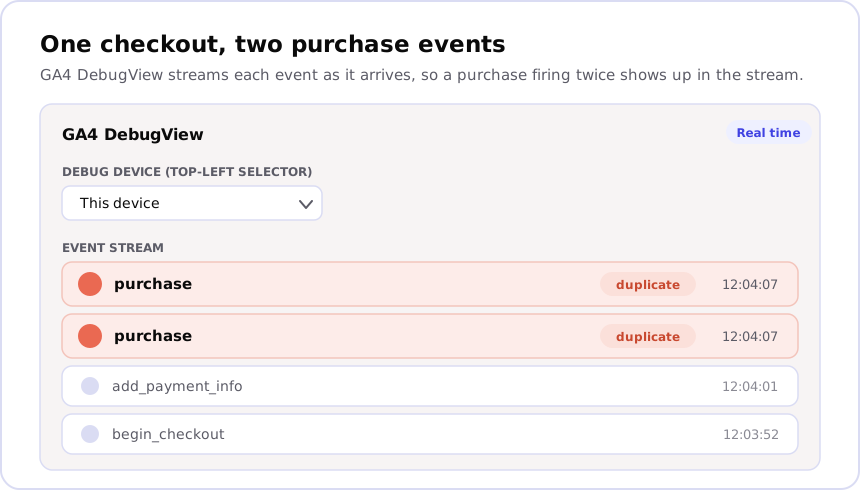
booking and count the purchase events in the stream. Click each one and
read its parameters. Two purchase events with the same timestamp but
different, or blank,
transaction_idvalues are the classic duplicate. - Read the transaction_id on every purchase hit. In DebugView, check the parameter is present, is a real booking reference, and is identical across any repeat hits for that booking. A placeholder, a session ID or an empty string all defeat GA4’s transaction ID deduplication.
- Check tag firing on the confirmation page, then on reload. In GTM, click Preview, connect Tag Assistant to the site, and complete a test booking. The left-hand event list shows each event on the confirmation page; click through them and note every point where a purchase tag appears under Tags Fired. Then reload the confirmation page and look again. A purchase tag that fires on the reload is sending a fresh purchase.
- Check the container and subdomain tagging. The Tag Assistant extension lists all the tags implemented on a page, which is how a second GTM container or a hardcoded gtag.js snippet shows up (Tag Assistant help). For missing pages, GA4’s Tag coverage summary, under Admin, Data streams, your stream, Configure tag settings, then the Admin tab, marks pages as Tagged, Not tagged or No recent activity (Tag coverage summary). Booking engines often run on their own subdomain, and that is where Not tagged pages tend to hide.
Each of these three faults maps to one of these checks. Duplicates surface in steps 2 to 4. Untagged subdomains surface in steps 1 and 5. A failing container surfaces in step 4, where tags that should fire sit under Tags Not Fired or error out (Preview and debug containers).
How do you fix duplicate purchases, and prove the fix?
The fix for a duplicate purchase is one purchase tag, on one trigger, fed by
one data layer push per order, carrying the booking reference as
transaction_id. Everything else that sends a purchase gets removed or
disabled. Untagged subdomains get the same GTM container as the main site, and
the container itself gets repaired until every expected tag fires in Preview.
Google’s ecommerce guide for Tag Manager shows the pattern: clear the previous
ecommerce object with dataLayer.push({ ecommerce: null }), push an event
named purchase with the ecommerce data including transaction_id, and fire
the GA4 event tag on a Custom Event trigger with the event name purchase
(Measure ecommerce, Tag Manager).
The event name in the trigger must match the pushed event exactly
(Custom event trigger).
dataLayer.push({ ecommerce: null });
dataLayer.push({
  event: "purchase",
  ecommerce: {
    transaction_id: "BOOKING_REFERENCE",
    value: 0,
    currency: "GBP",
    items: []
  }
});
The booking engine fills in the real reference, value, currency and items. If the confirmation page can reload and push the event again, the site should only push it the first time, for example by storing the booking reference after the first push and skipping the push when it is already stored.
Proving the fix takes the same checks in reverse. Run a test booking in GTM Preview and confirm one purchase tag fires, once. Reload and confirm nothing fires. Watch DebugView for a single purchase with the real reference. Then, once live bookings have come through, repeat the Transaction ID exploration from step 1 and reconcile it against the booking system again. The duplicate IDs should be gone, and the Tag coverage summary should show the booking subdomains as Tagged.
How do you check your own setup for duplicate purchase events?
You can run the same diagnosis on your own property with nothing more than GA4, GTM and a test order. Work through these in order and stop at the first one that shows a second purchase.
- In GA4, go to Explore, then Free form. Add the Transaction ID
dimension and Event count metric, and filter Event name exactly
matches
purchase(Free-form exploration). Sort by Event count, highest first. Any ID above one is a duplicate. GA4 shows(not set)when it received no value for a dimension, so a(not set)row is a purchase sent with no ID (What (not set) means). - In GTM, click Preview, connect to your site and place a test order. On the confirmation page, click through each event in the left-hand list and note where your GA4 purchase tag sits under Tags Fired (Preview and debug containers).
- Open the tag that fired and check Triggering. A Page View trigger on a
thank-you URL fires on every load of that page, reloads included
(Page view trigger). Switch it
to a Custom Event trigger on the
purchasedata layer event. - While Preview is connected, open GA4 Admin, then DebugView, and
count the purchase events for your test order. Click each and read
transaction_id(DebugView). - With the Tag Assistant extension, look at the confirmation page’s tag list for a second GTM container ID or a Google tag loaded outside GTM (Tag Assistant help).
- In GA4 Admin, then Data display, then Events, look for a created event named
purchase. GA4’s Create event feature copies an existing event into a new one (Create or modify events), so a rule that createspurchasefrom another event adds a second purchase to the one your site already sends.
GTM’s Tag firing options, under a tag’s Advanced Settings, include Once
per page, which fires the tag only once when the page loads
(Tag firing options).
That setting helps when two triggers fire the same tag on one page. A reload
is a new page load, though, so it does not replace a clean trigger and a real
transaction_id. Our guide to GTM tags that won’t fire
covers the Preview mode checks in more depth, and the
GA4 ecommerce data layer guide covers the
push itself.
What causes a GA4 purchase event to fire twice?
In our audits, the second purchase almost always comes from one of six places. The table lists each, and the check from above that finds it.
| Source of the second purchase | What happens | Where it shows |
|---|---|---|
| Hardcoded gtag.js plus a GTM tag | Both send the purchase on the same page | Tag Assistant tag list |
| Two GTM containers on the page | Each container fires its own purchase tag | Tag Assistant tag list, GTM Preview |
| Page View trigger on the thank-you page | Every load of the page, reloads included, sends a purchase | GTM Preview after a reload |
| Data layer pushed twice | The booking engine pushes purchase more than once | GTM Preview event list |
A created purchase event in GA4 | A GA4 rule copies another event into a purchase | Admin, Data display, Events |
| Browser tag plus a server-side or Measurement Protocol hit | Two systems report the same order | DebugView, Transaction ID exploration |
GA4 deduplicates web purchase events that share the same transaction ID
(Google’s transaction ID guide).
That page doesn’t cover server-sent hits, so we send the same transaction_id
from both systems and confirm in the Transaction ID exploration. Our
Measurement Protocol explainer covers
how server-sent events reach GA4.
Does a single-page checkout change the diagnosis?
A single-page checkout changes where you look, not what you look for. On a
single-page application (SPA), the confirmation view can appear without a full
page load, and a re-render can push the purchase event to the data layer a
second time. GTM Preview shows that plainly: two purchase entries in the
left-hand event list for one order, each firing the tag
(Preview and debug containers).
The fix sits with whoever owns the checkout code. The push needs to happen once per order, keyed on the booking reference, rather than every time the confirmation component renders. A Page View trigger is the wrong tool on an SPA anyway, because the confirmation step may never produce a page load at all (Page view trigger).
Still seeing duplicate purchase events after the fix?
If duplicates persist after one clean tag and one trigger, the second source is somewhere you have not looked yet. Three places account for most of the leftovers we see: a plugin or booking engine that sends its own GA4 purchase outside your container, a server-side or Measurement Protocol purchase with a different ID from the browser one, and old tags in a second container that still loads on some templates only.
Run the Transaction ID exploration again and look at when the duplicates happen. Duplicates on every order point at a second tag. Duplicates on some orders point at reloads or a template-specific container. Missing IDs point at a hit that never had one. Cross-domain setups between a main site and a booking subdomain add their own traps, which our cross-domain tracking guide works through.
When to call someone
Call someone when the checks above point at more than one cause, or at a cause you cannot change yourself. The thresholds we use: duplicates that remain after one clean tag and trigger, bookings in the order system with no transaction ID in GA4, a booking engine or payment provider that sends its own tags, or a GTM container where tags fail with no obvious trigger fault. Any one of those means a quick trigger fix will not settle it.
We run this diagnosis for agencies and in-house teams regularly, like the hotel group audit above, and we fix the tagging underneath it. If you want a quick outside view first, Sonar checks which tags and containers load on your pages the way a visitor’s browser sees them. Tell us what’s broken, or book a call. If you already know you need someone inside the account, our paid GA4 audit reviews your GA4 and GTM setup and ends in a written findings report.
Frequently asked
Why is my GA4 purchase event firing twice?
A GA4 purchase event fires twice when two things send it: a hardcoded gtag.js snippet and a GTM tag, two GTM containers on the same page, a GTM tag whose trigger fires on the confirmation page load and again on a data layer event, or a browser tag plus a server-side hit. Watch one test booking in DebugView and GTM Preview to see which source sends the extra event.
Does transaction_id stop duplicate purchases in GA4?
Partly. Google's documentation says GA4 deduplicates purchase events with the same transaction ID, and that the deduplication only works for web streams, not app streams. It cannot help when the ID is missing, when the two hits carry different IDs, or when the ID is an empty string, which Google warns makes GA4 deduplicate every purchase sent with that empty value.
How do I check if GA4 is double counting purchases?
Export a day of orders from your booking or order system and compare them with GA4 purchases for the same day, using the Transaction ID dimension in an Exploration. Any ID that appears more than once, or any purchase with no ID, is where to start. Then run one test purchase with DebugView open and count the purchase events it records.
Can a page reload create a duplicate purchase in GA4?
A reload of the confirmation page can send the purchase again if the tag fires on page load. GA4 drops the repeat only if it carries the same transaction_id as the first hit, so a reload that sends no ID, or a new one, lands as a second purchase. The fix is to fire the purchase tag on a Custom Event trigger tied to one data layer push per order.
Who can fix duplicate purchase events in GA4 for us?
We diagnose and fix this for agencies and in-house teams. If the checks in this guide do not show a single cause, tell us what's broken through the form on our homepage or book a call. When you already know you need someone inside the account, our paid audit reviews your GA4 and GTM setup and ends in a written findings report.